
Stacks Guru is born from the need to search the vast number of videos out there on stacks built for Stacks Pro and the Stacks 5 plugin for Rapidweaver.
We have scraped over 500 videos to get the transcripts for each in order to make the spoken word searchable.
Please use this free tool to help you learn and discover the awesome power that Stacks and the stacks made for Stacks have to offer.
00:10 so in this video we're going to be
00:11 looking at the random image stack
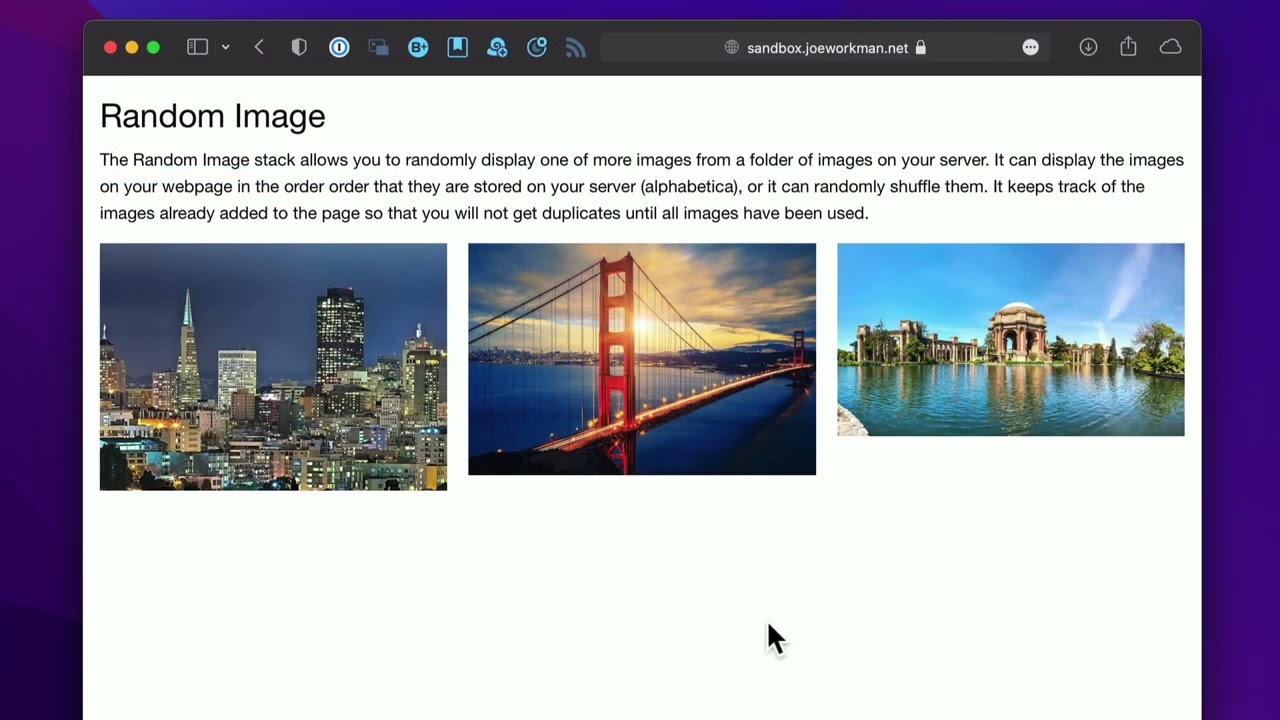
00:15 so here is a demo of the random image
00:17 stack and what you'll notice is that
00:19 when i'm refreshing the page here the
00:21 images are changing and this because
00:24 it's randomly picking a different image
00:27 from a folder on my server and
00:29 displaying that image for us
00:32 so here i am using transmit and here
00:34 we'll notice that i have a folder on my
00:36 server
00:37 called slot machine and inside of that
00:40 folder are four different images
00:43 so slot machine is at random going to
00:45 choose one of these images to display
00:49 on my web page
00:51 now configuring the random image stack
00:53 is super easy all you need to do is put
00:55 in a sample url to one of the images in
00:58 that folder
01:01 and when you do that you should see that
01:03 particular image right here in edit mode
01:06 this will guarantee that you actually
01:08 have the correct path
01:10 to the actual folder on your website
01:13 now i should note that these folders
01:15 have to be on the same website that you
01:18 are publishing to
01:20 now let's look at some of the settings
01:21 essentially you can add an alt tag for
01:23 seo purposes
01:24 you can easily add a link
01:26 you can have some customizations over
01:28 the sizing and alignment so you can
01:30 limit the width you can force the image
01:32 to be full width you have some alignment
01:34 options
01:36 now as well as image sorting
01:38 now i said earlier that
01:41 by default the random image will
01:43 actually shuffle and randomly pick an
01:45 image within the folder
01:48 however if you pick the
01:50 sort by order
01:52 basically what the stack is going to do
01:54 is it's going to look at the files that
01:55 are on your server and it's going to
01:58 serve them up in order
02:00 so if we look at these files that i have
02:02 here it's going to get the downtown
02:04 image first and if i have another
02:05 instance on the page it's going to get
02:06 golden gate and the next is going to get
02:09 painted ladies so on and so forth
02:12 so if we look at this demo again we'll
02:14 notice that again this is displaying the
02:16 images randomly every time i reload the
02:19 page the images are going to show up in
02:21 a different order
02:23 however if i go ahead and change all of
02:25 these images in this demo to sort by
02:29 alphabetical order
02:31 what we'll notice now is that the images
02:32 will always be displayed in the same
02:34 exact order
02:36 now random image will never show the
02:38 same image twice
02:40 unless you attempt to display more
02:42 images than what are in the folder
02:45 so if i duplicate this as you notice we
02:47 only had four images in that folder but
02:49 now we have six let's go ahead and see
02:51 what happens
02:52 so now what we'll see is that we get all
02:54 four images
02:56 and once all four images have been
02:58 displayed it will then start repeating
03:00 the images since there are more images
03:02 requested than what are in the folder
03:05 now one last thing to note is inside
03:07 preview
03:09 you will not get the random images you
03:11 will only see the same image that you
03:12 see inside edit mode when you preview
03:15 you will only get the randomized images
03:17 once you publish to your web server


