
Stacks Guru is born from the need to search the vast number of videos out there on stacks built for Stacks Pro and the Stacks 5 plugin for Rapidweaver.
We have scraped over 500 videos to get the transcripts for each in order to make the spoken word searchable.
Please use this free tool to help you learn and discover the awesome power that Stacks and the stacks made for Stacks have to offer.
00:06 hello everyone this is Joe workman and I
00:08 like to introduce you to the new special
00:10 effects stack now this new special
00:13 effects stacked allows you to configure
00:14 literally a thousand or more different
00:17 visual effects on your web pages with
00:21 anything I you could probably play with
00:24 a stack for hours having a great time
00:26 playing around with different visual
00:28 effects on how you can properly use it
00:30 within your website so let's start by
00:33 previewing special effects and seeing
00:34 some of the great things that it can do
00:37 now as we notice you just saw that after
00:40 this page was loaded 45 seconds this box
00:43 dropped down that's one thing you can do
00:46 on page load you can run effects maybe
00:48 show a an advertisement or show some new
00:51 content or show an image something to
00:54 kind of grab the users attention other
00:56 things you can do is somewhat probably
00:59 some people would label as annoying but
01:01 you can bounce things you can bounce it
01:03 you can blink it you can blow things up
01:05 okay now if you notice these are my
01:08 sweet button stack and if you click on
01:11 these you can also integrate not only
01:13 this week button but any visual link or
01:15 button and have it trigger in effect so
01:19 as you saw when i click that button a
01:21 new image faded in if i want to fade
01:24 that out simply click on it again and it
01:27 will fade out very nice now we also
01:31 contest a slide in effect we can slide
01:33 in and if we want to get rid of these
01:36 damn annoying buttons we can simply blow
01:39 them up okay now also we can hover over
01:45 anything as well so we've seen we can
01:47 automatically load effects on page load
01:49 we can load things by clicking on
01:52 buttons or hyperlinks and we can also
01:55 hover so if I hover on this text we
01:58 reveal a image of me now as you see when
02:04 i hover out that effect can go away and
02:06 all of these are configurable so let's
02:09 jump in and see some tips and tricks on
02:12 how to configure some of these
02:15 now it would take me forever to go
02:18 through all the potential settings that
02:19 you can configure with a special effect
02:21 stack there's just that much you can do
02:23 with it however let's just go through
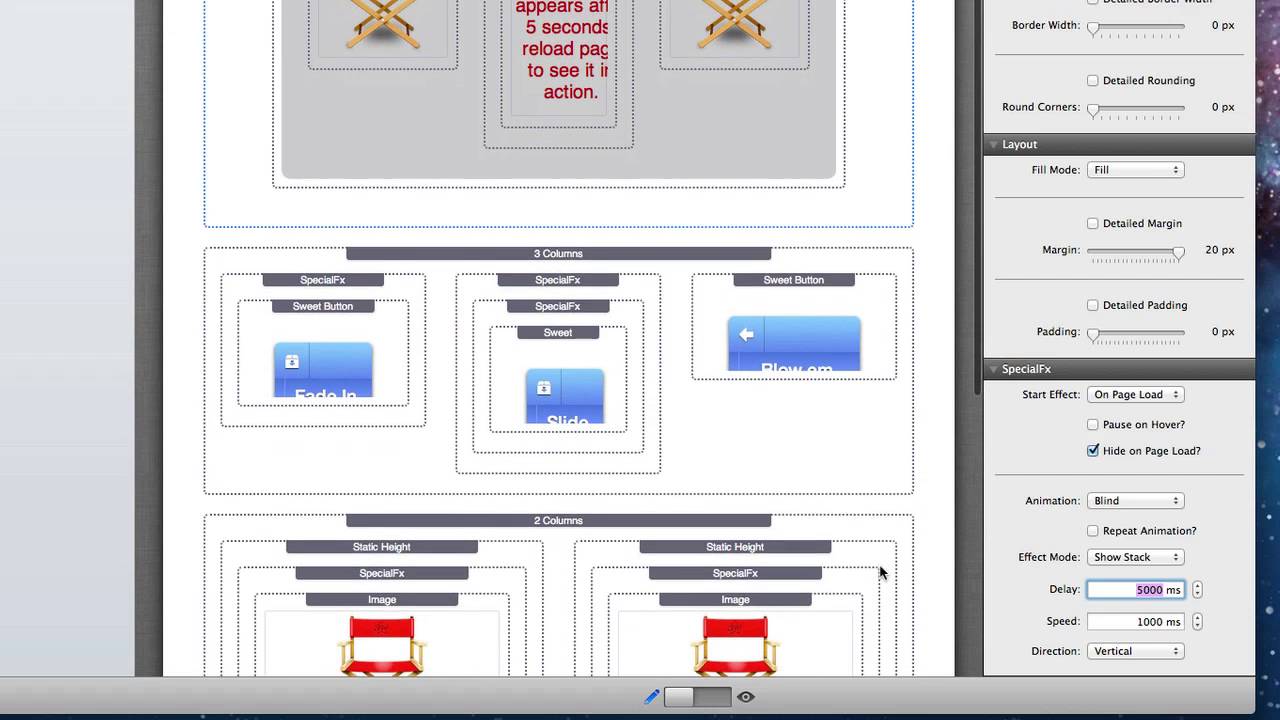
02:25 some of these basics the top stack here
02:28 as you saw faded in five seconds after
02:31 the page loaded as you see we can do
02:34 start effect and start effect on page
02:37 load we have on hover on click on custom
02:41 hover ID and on custom click ID now
02:44 we'll go over some of these other
02:45 options in a bit let's say on page load
02:48 we want to hide the stack element on
02:54 page load so when the page loads this
02:56 doesn't exist I want to hide it okay
02:59 because the animation effect we're going
03:03 to show the stack and we're going to use
03:04 the animation of blind so basically it
03:07 blinds down with vertical blinds it
03:09 opens down you can have the repeat
03:13 animation so if you have a potential
03:14 animation where you want to just keep on
03:16 repeating it okay that animation well
03:19 then it won't just happen once it'll
03:21 keep on going okay we have a delay so
03:24 five thousand milliseconds was five
03:27 seconds so five seconds after the page
03:29 loaded this animation is triggered okay
03:33 and the speed at which the animation is
03:36 ran is of course one second or a
03:38 thousand milliseconds so as you see you
03:42 can build upon these to really make
03:44 different effects if we wanted something
03:46 to load 10 seconds or 30 seconds or
03:49 right after the page loaded we could
03:51 make this 0 milliseconds or maybe 10
03:53 milliseconds okay um you can repeat the
03:56 animation to kind of get a much
03:58 different feel okay um and then as you
04:02 see we have a lot of different effects
04:04 ok we have standalone effects which are
04:07 kind of bouncing highlights pulsating
04:09 shaking something resizing it okay and
04:13 then we have things that are kind of
04:15 like more of like show/hide so I want to
04:17 show something or I want to hide it via
04:20 a blind effect or I want to explode a
04:23 particular element on my page and hide
04:25 it okay
04:27 you can puff something out you can slide
04:29 it in and out or up and down okay
04:31 there's a lot of different effects that
04:33 you that you see you can build upon
04:36 these different settings to make really
04:38 really great complex and and beautiful
04:41 effects for your website now the last
04:45 thing I want to I want to really dive
04:47 into is showing you how you can
04:49 integrate effects with clicks okay
04:53 clicking on link clicking on sweet
04:55 button or clicking on maybe even the
04:57 default button that ships with stacks
04:58 too so that's really simple let's go
05:03 ahead and take this stack for example
05:05 now if you notice when we clicked this
05:06 sweet button up here on the top left it
05:09 made this particular image down here
05:12 reveal itself so if we click on this
05:16 special effects stack okay we'll see
05:20 that we have settings set to custom
05:22 click ID and I'm setting the ID to fade
05:26 so basically I have it hidden on page
05:30 load the animation is fade and it the
05:34 animation will get clicked will be will
05:36 get kicked off once this custom click ID
05:40 is clicked now how do we configure this
05:43 custom click ID really really simple
05:46 within sweet button and this also
05:49 happens within uh pretty much with that
05:51 any link within rapidweaver highlight
05:55 your button click on set link okay now
06:00 you will notice the inside the link
06:03 window you can add your own custom
06:05 attributes all you need to do is set the
06:08 ID to fade which is the which is the
06:11 same ID that we configured in a special
06:13 effects stack okay now whenever I click
06:17 on this sweet button or this link it
06:20 will trigger that effect how cool is
06:23 that now what's really cool is if you
06:25 also if you noticed when I click on this
06:27 third button it exploded not only one
06:31 but two elements what this means is that
06:34 you can actually trigger multiple
06:37 special effects with a single link
06:40 and the way I did that is by configuring
06:44 the special effects stack for each of
06:46 these two buttons to contain the same
06:48 custom ID of explode so button number
06:55 one has custom ID explode but number two
06:58 has custom ID explode and my sweet
07:03 button here which is labeled blow em up
07:05 is set to have the ID of explode so when
07:11 I click on the ID explode it will
07:15 experience for both effects button on
07:19 one and button too now lastly if you
07:27 notice this middle button I have
07:29 multiple effects tied to it I have the
07:32 explode triggered off the third button
07:34 and i also have a pulsating effect so
07:39 you saw that blinking effect on the
07:41 button okay this really takes your
07:46 special effects to a whole nother level
07:48 now be cautious sometimes this will work
07:50 and sometimes it won't sometimes it just
07:53 makes things extra annoying in this case
07:55 this button made extra annoying but use
07:59 wisely you can actually make some really
08:01 great effect combinations by combining
08:04 special effects on your elements so I
08:09 hope you enjoyed the special effects
08:11 stack now go forth and make your
08:13 websites great
08:18 you


