
Stacks Guru is born from the need to search the vast number of videos out there on stacks built for Stacks Pro and the Stacks 5 plugin for Rapidweaver.
We have scraped over 500 videos to get the transcripts for each in order to make the spoken word searchable.
Please use this free tool to help you learn and discover the awesome power that Stacks and the stacks made for Stacks have to offer.
00:08 hello everybody this is Joe workman and
00:10 today I'd like to introduce you to the
00:12 squeezebox stack now the squeezebox
00:15 stack is a very stylish accordion stack
00:17 that lets you organize your content
00:20 within sections and when you click on
00:22 the section title the contents of that
00:24 section is unveiled now let's jump in
00:31 and see how easy squeezebox is to set up
00:33 when you add squeezebox to your page it
00:36 automatically adds two sections here for
00:38 you now as you might think all you need
00:41 to do is edit the section title here and
00:45 then add your content to the content
00:47 area for that section and that's all
00:53 there is to it now let me go ahead and
00:55 populate my squeezebox with some content
00:57 so now that I've populated my squeezebox
01:00 with some content let's go ahead and
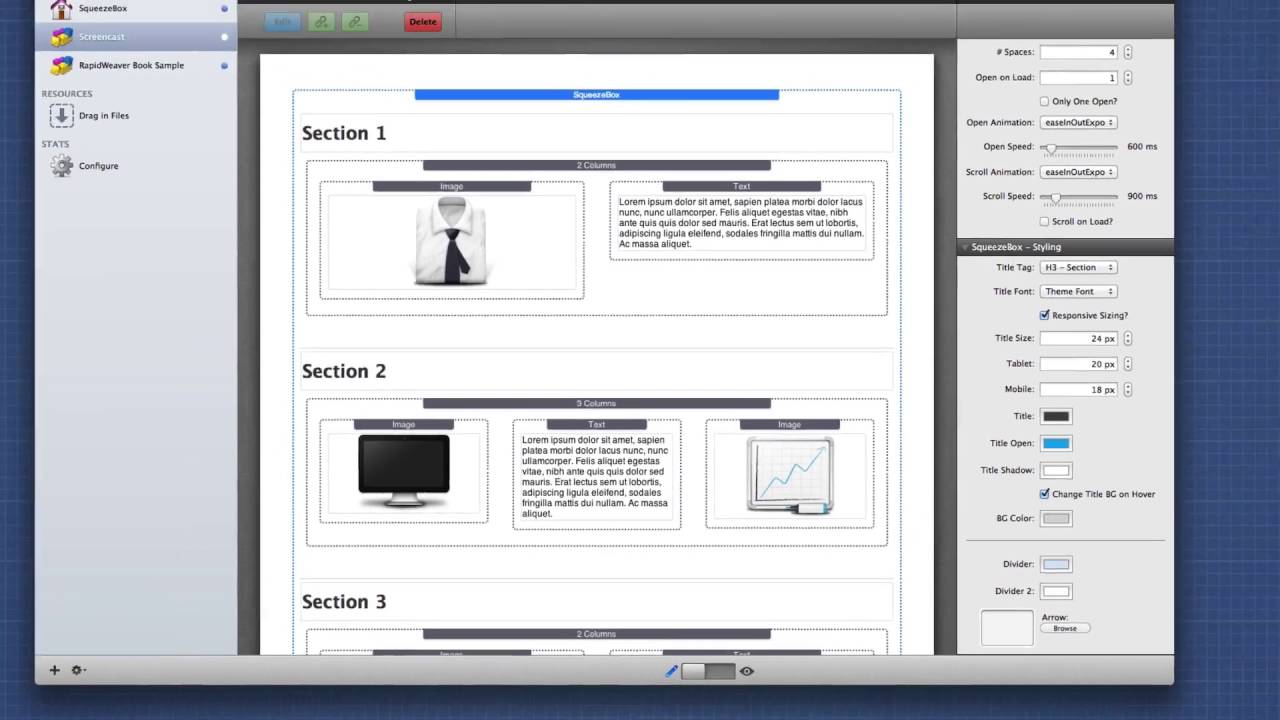
01:01 look at some of the settings will notice
01:05 that the number of spaces that's pretty
01:06 obvious that adds additional sections to
01:09 squeeze box for you to use I've added
01:12 four different sections here now by
01:14 default squeeze box will not have any
01:16 sections open however with the open
01:19 onload setting you can open up a
01:21 particular section on page load most
01:24 likely you're either going to want them
01:26 all closed or have section one opened
01:28 however you can definitely open any
01:31 section you like on page load now the
01:33 only one open setting allows only one
01:36 section to be open at any point in time
01:39 now the other settings here in the setup
01:42 are basically for you know controlling
01:44 the animation the speed the animation
01:46 effect and things of that nature let's
01:49 go ahead and preview our page to see
01:51 what it looks like so as we see here
01:55 section one opened automatically because
01:57 we asked it to and when I open section
02:00 section one will close now if we were to
02:04 uncheck that setting
02:09 well now notice when I go ahead and open
02:12 section to both sections will remain
02:15 open now let's look at some of the style
02:18 options for squeezebox by default the
02:20 titles are set to be a h3n2 have the
02:24 ability to change that to any of the
02:26 header tags or plain text as you want
02:29 now header tags are pretty important for
02:32 search engine optimization so you want
02:34 to make sure you choose this accordingly
02:36 you also have the ability to customize
02:38 the font of the title now by default it
02:41 will inherit the font that is used
02:43 inside the theme however you can
02:45 definitely choose from over 20 available
02:49 commonly used web supported fonts now
02:53 there is a custom definition available
02:55 where you can actually type in your own
02:57 custom font this is great if you have
03:00 any of the font of font face stacks or
03:03 google fonts tax and you want to
03:05 actually use the fonts from those stacks
03:07 inside squeezebox obviously next you can
03:11 change the title size this provides you
03:13 if you want larger titles or smaller
03:15 titles now if you are building a
03:18 responsive design website and check this
03:20 responsive sizing box you'll be able be
03:23 able to then change the size of these
03:25 section titles for a desktop tablet or
03:29 mobile device next are our color options
03:33 the title is the default state so the
03:36 actual the closed state of the section
03:39 title title open is the color that the
03:42 title will be when that particular
03:44 section is hovered over or opened and
03:48 then of course you can also add a title
03:50 shadow color to give your titles some
03:53 pop lastly you also have the ability to
03:56 change the title background on hover
03:59 this provides an interesting effect
04:00 let's turn it on and see how things go
04:05 so you'll see when I hover over my
04:07 titles the background of the particular
04:10 section changes color now the next two
04:13 settings allow you to customize the
04:15 color of the lines that divide each
04:17 section now it may not look like it but
04:20 there are actually two one
04:22 pixel lines there and you can customize
04:24 the color of each of those lines
04:26 depending on the colors that you choose
04:28 you can really get some great effects
04:30 now the last setting allows you to
04:32 customize the arrow image that is used
04:35 to highlight each section title you can
04:38 access additional arrows that ship with
04:41 squeezebox directly from your stacks
04:43 media library let's go ahead and make
04:46 the arrows purple on this example let's
04:52 preview our site and as we notice the
04:56 color of the arrow is now purple now
05:00 let's look at a more advanced setup for
05:02 squeezebox at the beginning of this
05:04 screencast I show a beautifully designed
05:06 page that uses squeezebox however it
05:09 does use some other stacks in order to
05:11 help style the section titles as well as
05:14 make the content responsive now as you
05:17 see the configuration for this is quite
05:19 complex and I'm not going to go over
05:20 every minut detail here however when you
05:24 purchase squeezebox this sample file
05:26 will be on the disk image for you to
05:28 download now if we look at the content
05:30 will notice that I am using the
05:33 responsive layout stacks so the response
05:35 of two column stack will then
05:38 concatenate these two columns into one
05:40 for a mobile device and then I have
05:43 other things up here letterbox stacks to
05:45 help me style the headers let me go from
05:47 the top down I have a fluid image box
05:50 stack and this is used to contract the
05:54 images that are within all of the images
05:57 that are within squeeze box so that has
05:59 a they all have a max width of 128 and
06:02 they'll all squeeze down to a ground 5
06:05 pixels on a mobile device next I have a
06:09 letter letter press box stack which sets
06:12 the default color and theme for all text
06:15 within the stack so this default text
06:18 areas the lists they all get the default
06:21 text with a letterpress shadow the
06:25 second letter press box stack uses a
06:28 custom CSS selector and this CSS
06:32 selector is SB header and that targets
06:35 the
06:35 squeezebox header and this sets the
06:38 default color on to great dark grey and
06:42 sets the shadow style to insect so get
06:45 that nice inset look and feel the next
06:49 letter press box stack defines for SB
06:52 header on hover and when it's active so
06:56 you can look at this custom CSS selector
06:58 and it it selects the squeezebox header
07:00 when it's hovered or when it's the
07:02 active it will set the color to purple
07:04 and it will keep the inset letter press
07:07 box styling and with these settings we
07:11 get a very beautifully laid out page and
07:14 to show you how this page looks on a
07:16 mobile device will see that when we look
07:18 at it on an iPhone the first section
07:20 here will see that my content has
07:23 responded um and everything is shows
07:25 just as we had liked it too on a mobile
07:28 device I hope you really enjoy
07:30 squeezebox it is a great stack very
07:32 powerful simple to use and have a great
07:35 day thank you very much


