
Stacks Guru is born from the need to search the vast number of videos out there on stacks built for Stacks Pro and the Stacks 5 plugin for Rapidweaver.
We have scraped over 500 videos to get the transcripts for each in order to make the spoken word searchable.
Please use this free tool to help you learn and discover the awesome power that Stacks and the stacks made for Stacks have to offer.
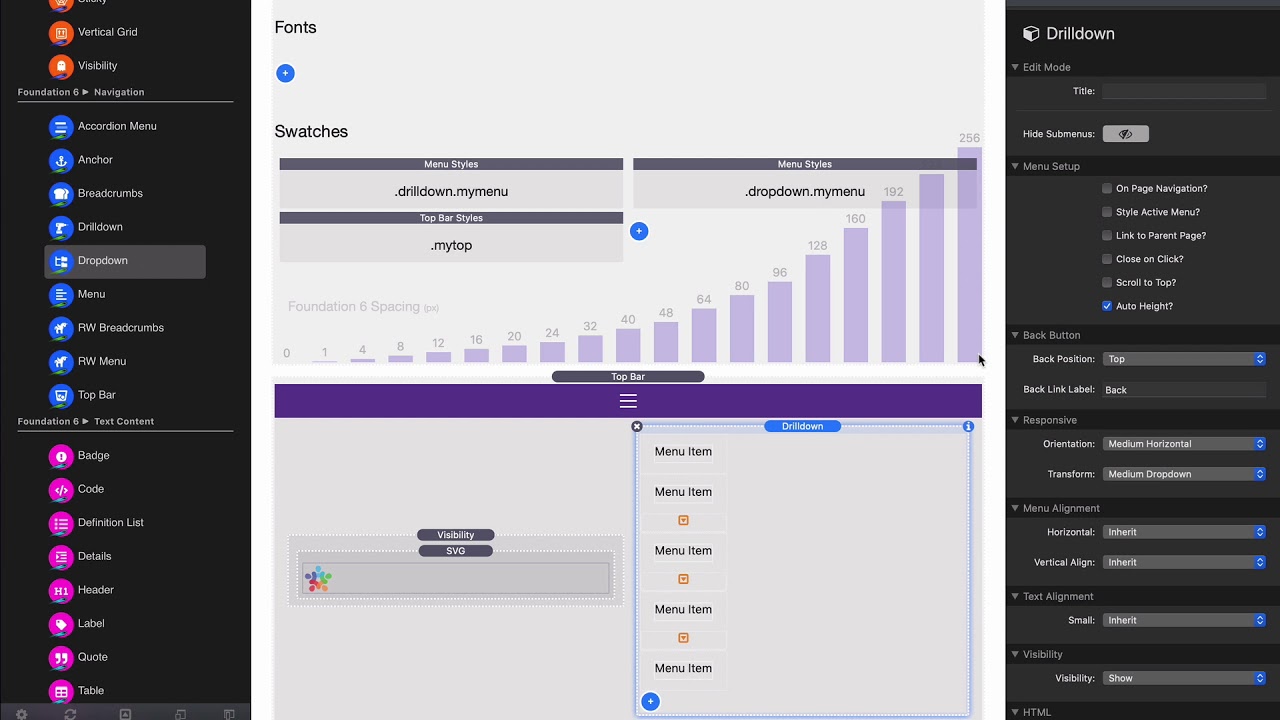
00:08 okay in this video we are gonna learn
00:11 how to style our menus and now styling
00:15 menus has come a long way since the
00:17 initial 6.0 launch of foundation and I'm
00:20 really happy with where things are umm
00:22 it has a new menu swatch shift in
00:25 foundation 6.2 and man it is really game
00:28 changing it allows us to really easily
00:30 style our menus exactly how we'd like
00:34 okay so here we are I'm just continuing
00:37 with a build that we did from the top
00:40 bar video and I'm kind of using the
00:42 existing top bar we're just gonna see
00:44 how we style the menu there okay first
00:47 off inside this menu if you notice down
00:50 on the bottom I've added a class called
00:51 my menu and that corresponds to the
00:55 class here that is used inside the menu
00:58 swatch ok so inside the main you swatch
01:01 I could I can define my menu and what's
01:04 really cool here is you can actually
01:07 define what type of menu this is going
01:11 to style right because let's say for
01:15 example you know in this top our example
01:17 I'm actually I have a drill down and
01:19 then remember it morphs to a drop-down
01:22 menu when it's on tablet or medium and
01:26 large devices right so what this allows
01:29 us to do is let's say I had um I can
01:33 create two different menu swatches for
01:36 this menu man I'm diving right into the
01:39 hardcore stuff really quick but if I did
01:42 this I have my menu dot drill down like
01:45 if I were to copy and paste this swatch
01:47 okay I could then do my menu drop down
01:51 so when my menu is a drop down use these
01:55 Styles when my menu is a drill down use
01:59 these other color styles this gives us a
02:02 lot of really powerful flexibility with
02:05 the menu stack just with a single class
02:07 I don't need to put any other classes I
02:09 just put my menu on here but the menu
02:11 swatch allows us to really do
02:13 mine and hone down because we might want
02:16 our submenus to be different colors on
02:18 drop-down verses drill down and so on
02:21 and so forth right so this gives us a
02:22 lot of flexibility to target the menu in
02:25 the exact state that we want
02:28 okay so just as any other swatch we have
02:31 optional conditions of media query not
02:34 sure how much that's gonna be useful
02:35 with with menus but it's here if we ever
02:37 need it okay next is all the various
02:41 colors okay so we have links we can set
02:45 the link the default color link and the
02:47 hover color we have active links now for
02:52 active links you're gonna have to make
02:54 sure if if you're in your menu that you
02:57 actually have like style active menu
02:59 enabled okay if you want you active
03:02 links to be styled okay
03:08 however for things like drop-down on the
03:10 hover on submenus is gonna be used for
03:14 this then you can customize the heading
03:16 because remember we can add a static
03:18 text and kind of like labels inside of
03:20 our menus this allows us to customize
03:21 those colors
03:22 um this allows us to define our padding
03:25 right so we can make our our menus
03:28 taller or fatter right so like an
03:31 example let's look at this this
03:33 particular menu on this page let's set
03:35 it to something like 32 pixels right as
03:38 you can see right here in edit mode it's
03:40 gonna make it a really fat menu it's
03:42 gonna make it really really big okay um
03:45 and then we can style the background on
03:47 hover so if you want to have custom
03:49 hover colors we can do that so if you
03:51 want to you know as you hover over with
03:53 your mouse on various menu items you can
03:55 change the hover color of each menu item
03:59 well next is we can actually have
04:02 separate menu styles for the sub menu
04:05 okay so for example in this example we
04:09 have our background color as as white
04:11 right so let's let's go ahead and
04:13 preview this menu we see here when I
04:15 hover over the background menu is styled
04:18 differently than the menu above right
04:21 because we want we it's gonna be hovered
04:22 over content so we want to make sure we
04:24 have a background on there and things of
04:26 that nature
04:26 okay so you can customize the links to
04:30 be a different color the hover color to
04:32 be different and then the background
04:34 color and then you can also customize
04:35 the caret color now the caret color is
04:38 is on in the submenu settings because
04:42 you only see the caret when a submenu is
04:44 active so this allows us to customize
04:46 the caret basically the submenu
04:48 indicated okay um then we have our
04:53 headings obviously and then we have our
04:55 border if you notice the submenu
04:56 actually has a border around it you can
04:58 customize the color and the size of that
05:01 because some people don't want any
05:03 border at all it which kind of gives you
05:04 a much different look obviously of in
05:06 the background of this site is white so
05:08 when I remove that border it doesn't
05:10 look too great but maybe in different
05:11 site configurations that's exactly what
05:14 you want and then just like uh the menu
05:17 you can actually adjust the padding to
05:20 have different padding on the sub menu
05:21 because if we kept that the same and the
05:24 sub menu was also 32 pixels that would
05:27 look pretty horrible
05:30 so as you see menus are really simple to
05:33 style now and to really make your own I
05:36 think that because of they're so modular
05:39 and we can actually define um targeting
05:42 styles based on the type of menu um we
05:45 have a very very flexible solution here
05:48 now there are times where you might need
05:50 to do something extra little special
05:52 maybe you want to target a specific menu
05:54 item or you want to do something special
05:56 for active menus right well basically in
05:59 all the swatches let's say you are a
06:01 background color right um if you go to
06:05 the elements inside of any sort any
06:06 swatch at all you'll notice inside
06:08 there's pre baked elements for tons of
06:10 different menu options we have menu menu
06:13 item div menu items submenu items active
06:16 submenu items drill down menus title
06:20 bars top bars right so there's a lot of
06:22 elements pre baked in here um so that
06:25 you can make sure if you really want to
06:27 fine-tune various settings maybe you
06:29 want to have round corners on something
06:31 right um this allows you to do that


