
Stacks Guru is born from the need to search the vast number of videos out there on stacks built for Stacks Pro and the Stacks 5 plugin for Rapidweaver.
We have scraped over 500 videos to get the transcripts for each in order to make the spoken word searchable.
Please use this free tool to help you learn and discover the awesome power that Stacks and the stacks made for Stacks have to offer.
00:08 hi it's Rob from drill workman stacks
00:11 today I'm gonna show you a tutorial on
00:13 how to use cross links with the tabulous
00:17 2.5 stack so you'll see here we have
00:20 this is the way Joe had it set up you
00:23 can do this any way you want you can in
00:26 the tabs don't or the the images don't
00:29 have to be set up this way you have
00:31 images in four different corners using
00:32 Joey's target stack and it would work
00:34 the same way this is just the file that
00:38 is on the tabulous 2.5 disk image and if
00:43 you want this look at the fact for the
00:45 how to do cross links and there's a link
00:47 to this demo project so what Joe is done
00:52 here though and the links can be
00:54 anything to Joe's using images but it
00:56 can be text it can be anything and it
00:59 will link to this the tabular stack
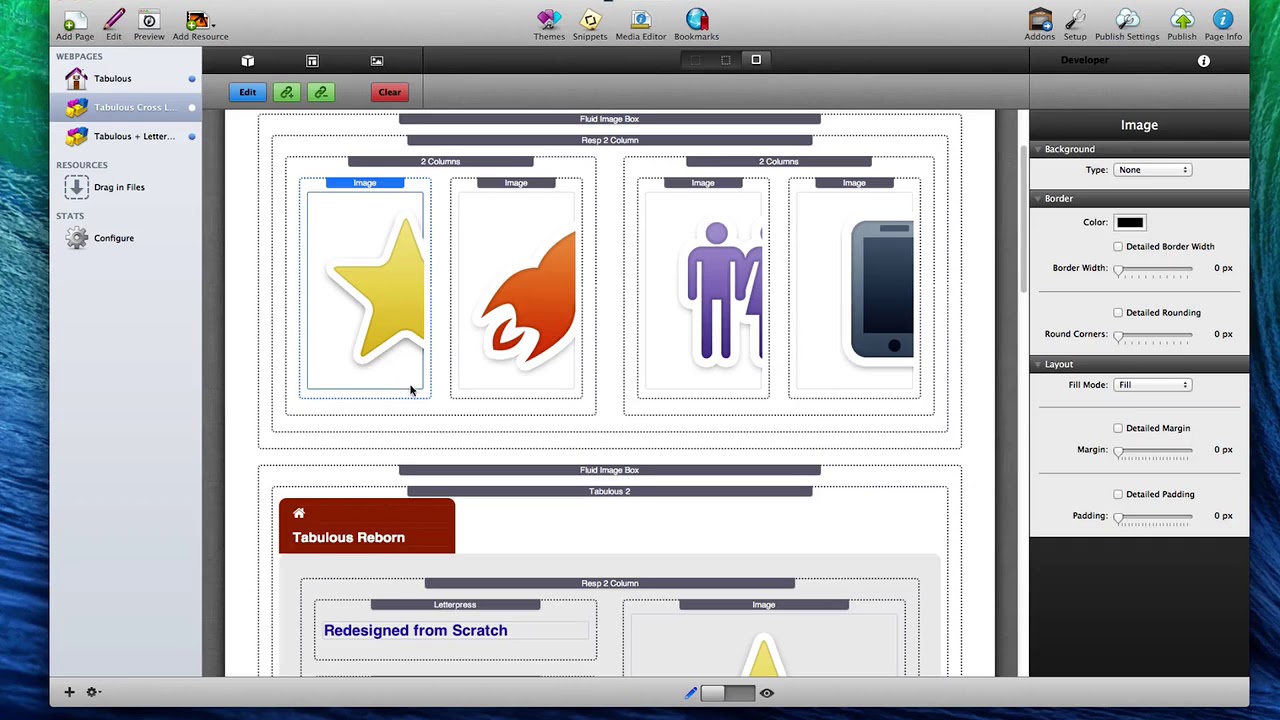
01:03 recording okay so what you first have to
01:06 do is set up what you want to link with
01:08 Joe set up four images here
01:10 he set them up in a two responsive
01:12 column with four two columns inside of
01:14 that so you've got a total of four
01:16 columns then what you need to do is you
01:19 need to set up your tablet stack so you
01:21 put your tablet stack in add all your
01:24 images and text that you want in there
01:27 and when you're also doing this you're
01:29 gonna want to go down to the bottom
01:31 there's a new setting at the bottom of
01:33 the tabular stack that's called fabulous
01:35 advanced and you'll want to make sure
01:38 you have customized fabulous IDs checked
01:41 then you want to name your custom ID and
01:45 the name can be anything you want it to
01:47 be okay
01:48 Joel use cross link here but if you want
01:51 to name it tab number one so you don't
01:54 like that goes to one tab you listen if
01:57 you're doing it cross link we look
01:58 through tabular sex name the second one
02:01 tab - it's all up to you okay once you
02:04 have your tabular staff built and your
02:06 custom customized ID typed in you then
02:10 want to start linking your images or
02:12 text or whatever
02:13 you're gonna use to the tabular stack
02:15 since joy used images in this example
02:17 you'll click on an image you know just
02:20 add a normal link by clicking on the add
02:23 a link and for the URL and you'll also
02:28 notice down here in the custom
02:29 attributes we'll have to add something
02:31 but in the URL you put a hashtag or
02:34 pound symbol and then the name of the
02:37 staff you want to link to now you'll
02:39 notice Joel has the first one here as
02:40 tabulous reborn and if I cancel out of
02:44 this and scroll down that's the first
02:45 tab you'll also notice how Joey's done
02:48 it just he's matched the icons here so
02:50 the first picture of the star will match
02:52 that star in the tab and so on with the
02:55 rest images but let's go back to that
02:57 link so the link is a hashtag or pound
03:01 sign with the name of the stack if the
03:04 name has two words like this one does
03:06 tabulous be born you want to make sure
03:08 they're all lowercase but have a dash
03:10 for the spaces okay then you want to add
03:13 a custom attribute by clicking on the
03:15 plus symbol and the first thing is you
03:18 want to add is this little line of code
03:20 right here and you'll notice that this
03:22 code can also be found in the tabular
03:24 stack and I'll show you that in a second
03:26 but it's data - liquid slider - re F
03:30 okay then the value is going to be
03:34 tabulous and this word tabulous is
03:36 always going to be in the value but the
03:39 remainder part is gonna be your
03:40 customized ID that you chose sentenced
03:43 you showed you before Joe chose
03:45 cross-linked
03:46 okay so it'll be fabulous - and whatever
03:50 your customized ideas again if there's
03:52 spaces you want to use dashes this value
03:56 here is tabulous - cross - link you
03:59 click on set that links up the image to
04:02 that tab let's look at the next one this
04:05 is feature-rich
04:06 okay again it's got that data - liquid
04:09 slider - ref has the tabulous word and
04:12 the cross link which is a customized ID
04:14 again the hash tag with the name of the
04:18 tab set in the URL order the third image
04:22 I'll believe this one has three words in
04:24 it so you'll notice there is two dad
04:27 between each the words again with the
04:29 hashtag or pound symbol the same custom
04:31 attribute in here and the last image
04:34 we'll look at real quick and it's just a
04:37 one ordered one and it's got again the
04:40 custom s we would set the same way okay
04:43 now if you don't remember that code you
04:45 can always click on the tabular stack go
04:48 all the way back down to the bottom of
04:49 the settings and it tells you down here
04:51 that you need to set up the data liquid
04:55 slider ref and that you'll also need to
05:00 set that attribute to tabulous - my ID
05:03 the customized ID okay so once you have
05:08 that all set up you've linked your links
05:10 to the correct tabulous tabs you have
05:14 the cross-linking set up with the
05:17 correct attribute added and you should
05:21 be ready to go ahead and preview and as
05:23 you once you do that you should see your
05:26 images and again this can be anything
05:28 can be text images don't have to be in
05:30 this concept they but this is just the
05:33 way the demo project project has but as
05:36 you click an image it will link to that
05:39 stack so it's a very cool way to make
05:44 image tabs it's a very cool way to link
05:46 to text if you want again this project
05:50 file is on the tableaus 2.5 disk image
05:55 if you do not get the disk image because
05:59 you have a sparkle update then you might
06:01 want to look at the the fact page and
06:03 there's a download link there for the
06:06 project file so I hope you've enjoyed
06:09 this tutorial I hope it shows you how
06:11 easy it is to to make something as
06:13 nice-looking as this tab you go stack
06:15 here with picture tabs and enjoy the the
06:20 stack it's a great update and I enjoy
06:23 your reading thanks


