
Stacks Guru is born from the need to search the vast number of videos out there on stacks built for Stacks Pro and the Stacks 5 plugin for Rapidweaver.
We have scraped over 500 videos to get the transcripts for each in order to make the spoken word searchable.
Please use this free tool to help you learn and discover the awesome power that Stacks and the stacks made for Stacks have to offer.
00:07 hello everyone this is Joe workman and
00:09 today I would like to introduce you to
00:11 tabulous to tabulous has been completely
00:15 rewritten with over 75 amazing updates
00:18 it's still easy as ever to implement and
00:21 it is absolutely brilliant on mobile
00:24 devices as you see tablets provides a
00:28 great tabbed slider interface that
00:31 allows your users to easily navigate
00:33 through tabbed content areas now let's
00:39 jump in and see some of the amazing new
00:41 features that tabulous to now I should
00:44 note that tabulous has a lot of settings
00:46 and only going to touch base on just a
00:49 few of them in this video and make sure
00:51 you look at four and more advanced
00:53 in-depth tutorial coming soon the top
00:56 level settings we have tabula slide
00:58 container this actually affects the
01:00 actual slide container that contains
01:03 each slide that you'd like the first
01:06 setting obviously contains the slide
01:08 count that is the number of slides and
01:10 tab content that you'd like to have next
01:14 down we have the container we are
01:15 actually allow tabulous to be either the
01:17 normal tab container or a generic slider
01:20 which actually removes the tabs you can
01:25 then obviously change the background
01:26 color to be solid a titled image or
01:28 transparent you can change the content
01:31 padding you could add rounded corners
01:35 you can also add a drop shadow now the
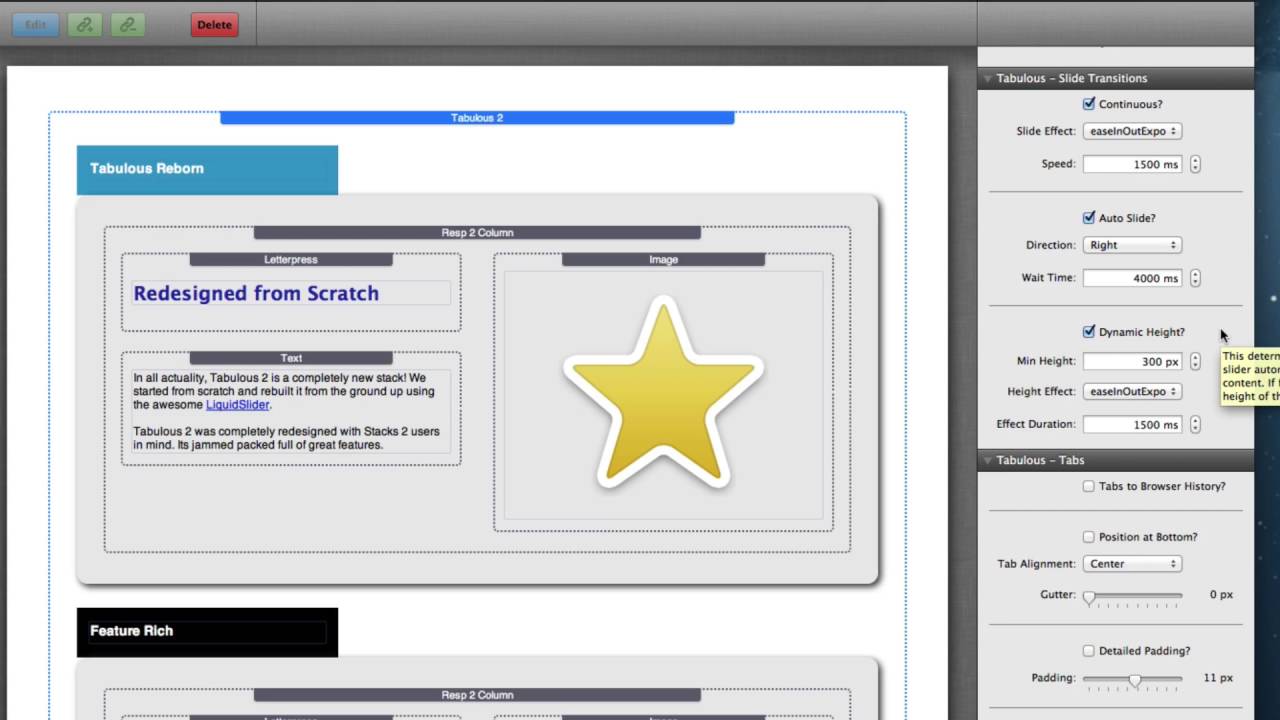
01:39 next settings control group is the slide
01:42 transitions this allows you to configure
01:44 the slide effects as well as the speed
01:47 of those effects between each slide
01:49 transition you could turn on auto slide
01:52 which allows you to have an automatic
01:54 slideshow or else the users need to
01:57 manually click through the tabs to see
01:59 the content we also support dynamic
02:02 height which allows the tabula stack to
02:05 actually adjust height based on the size
02:08 of the contents within each tab
02:11 the next setting group is the tabula
02:14 stab setting which as you may think
02:16 actually controls this style and some
02:19 other attributes of the actual tabs now
02:24 this first checkbox will allow you to
02:26 actually every time a user clicks on a
02:28 tab or a tab is shown it will actually
02:31 save that tab in the browser history so
02:34 that users can actually go back and
02:36 forth in their browser history and
02:38 navigate between slides you can then
02:42 adjust the position do you want the
02:44 attached to be on the top as default or
02:46 do you want them to be on the bottom of
02:47 the stack do you want your tab alignment
02:50 to be centered left or right and an
02:54 amazing new feature is the gutter this
02:57 allows you to actually separate the tab
03:00 contents from the container which gives
03:04 you a nice navigation menu type feel
03:07 instead of a tab feel for your stack you
03:11 can then adjust the padding for it as
03:13 well as add rounded corners to each tab
03:17 element you can also inherit the same
03:20 shadow that we generated for the slide
03:23 container you then obviously change text
03:26 size as well as all the various colors
03:28 for each tab now the next settings group
03:33 allows you to customize the actual
03:35 navigation arrows that are shown on the
03:38 tabular slider we can actually show or
03:42 completely hide our arrows we can just
03:45 show the arrows on hover we can actually
03:48 hide the last and first arrows based on
03:51 the tab that is being shown so if we are
03:55 at the last tab the next arrow will not
03:57 be displayed and if we were on the first
03:59 tab the previous error will not be
04:01 displayed we can configure the size of
04:04 our arrows as well as the vertical
04:06 positioning within the left and right
04:08 sides that we'd like to have our arrows
04:11 and then it last but not least we can
04:13 actually configure our custom arrow
04:15 images rather than the default ones that
04:18 ship with tabulous now if you'd like to
04:21 have some amazing arrow images
04:24 check out our compass stack it ships
04:26 with 300 beautiful arrows that you can
04:29 use directly within tabulous as well now
04:34 in our last settings group is really
04:36 what sets tabulous apart from all other
04:38 tabbed containers and this is where we
04:41 configure that how tabulous responds to
04:44 your mobile device now if we were to
04:47 look at tabulous in a mobile sized
04:49 browser we would notice one thing there
04:52 are actually no tabs here tabulous has
04:55 morphed itself and do a beautifully
04:57 usable mobile navigation which allows
05:00 users to click on the menu and
05:03 dynamically navigate to the actual tab
05:05 that they would like now if you also
05:08 noticed our two columns actually shrank
05:10 down to a single column because we are
05:13 using the responsive layout stacks now
05:16 that we've seen how tabulous responds in
05:18 a mobile device you'll see that we can
05:20 actually configure many of these things
05:22 attributes of it we could turn on and
05:24 off the mobile navigation change the
05:26 navigation title as well as define our
05:29 own menu image that floats on the right
05:32 side of the menu now tabulous does
05:35 include extra menu images within the
05:37 stacks media library for you to use and
05:40 that is tabulous everybody I hope you
05:43 really enjoy this amazing stack it
05:45 really is revolutionary and how it
05:48 actually manages tab containers on your
05:50 mobile device now go forth and make your
05:53 websites great
06:01 you


