
Stacks Guru is born from the need to search the vast number of videos out there on stacks built for Stacks Pro and the Stacks 5 plugin for Rapidweaver.
We have scraped over 500 videos to get the transcripts for each in order to make the spoken word searchable.
Please use this free tool to help you learn and discover the awesome power that Stacks and the stacks made for Stacks have to offer.
00:08 so right now we're gonna be talking
00:10 about the elusive top our stack now if
00:13 you ever used foundation one you know
00:15 top bar was like the flagship menu
00:18 toppers completely different animal in
00:21 foundation six it is not a menu at all
00:25 top bar is simply a kind of a menu
00:29 specific layout utility there are no
00:34 menus baked into top bar it is purely a
00:37 way of laying out your menu and it does
00:41 have the ability it has something called
00:42 a title bar which basically on menu
00:45 gives you this menu bar that you can
00:47 click and then expand a menu out right
00:51 but that's all top bar is it has its a
00:53 two column stack essentially it has a
00:55 write in the left column and you can
00:56 turn either right or left on or off okay
01:00 and then you can enable a title bar if
01:02 you like that's it I mean top bar don't
01:07 get me wrong it's useful but um it is
01:10 just a simple layout you could probably
01:12 achieve most of what top bar does um
01:14 with just some basic column stacks most
01:18 of it
01:20 okay but let's jump into an existing top
01:24 our instance that I've already built out
01:25 just to speed things up a little bit so
01:29 what I've done here is I kind of have a
01:31 typical what someone might imagine top
01:33 are from them from foundation one to
01:35 kind of look like right so over here I
01:37 have my drill down um that morphs into a
01:40 drop down if you're wondering how to
01:42 achieve that just make sure you check
01:43 out the drill down video and we show you
01:46 how to transform that into a drop down
01:48 menu and all that jazz okay so we have
01:51 that on the right side and then on the
01:54 left side we just simply have a SVG of
01:56 the Weaver space logo okay so really
01:58 really simple layout now I have a
02:01 visibility here because we want to hide
02:03 that on mobile um and then obviously we
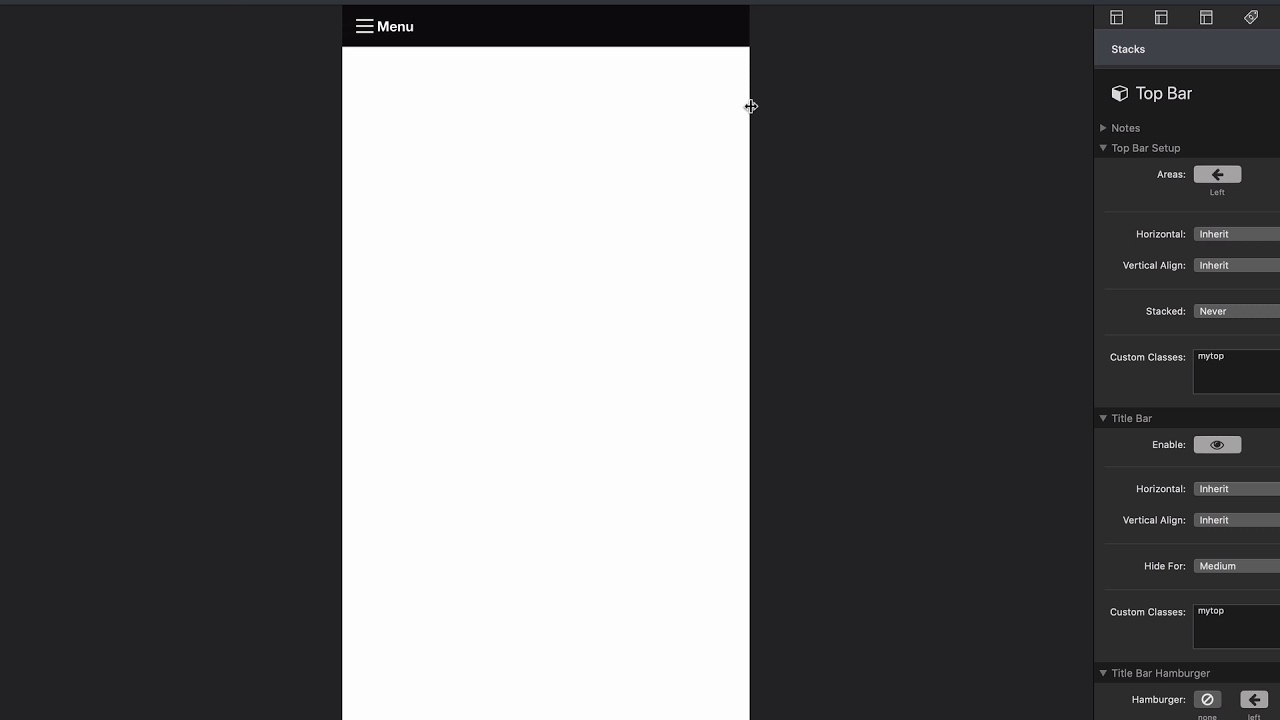
02:06 have our title bar now let's preview
02:08 this really quick here we just have an
02:10 attractive menu it's a drop-down menu
02:13 and then over here we have our icon or
02:16 logo on and then if we go all the way to
02:19 mobile you'll see that it kind of morphs
02:21 into a a nice title bar and we can then
02:24 click on and then from there we have our
02:27 nice drill down menu okay really really
02:32 good let's look into some of the options
02:34 that we have with top bar so as I showed
02:37 you earlier we can turn on and off the
02:39 right or left side and you can put your
02:41 menu on either side or you can put menus
02:44 on both sides it's really up to you okay
02:46 you can drop whatever you want into top
02:48 bar if you want to use top bar as just a
02:50 general layout tool without a menu you
02:52 can do that - it's just a utility
02:55 then we have some horizontal alignment
02:58 options that you're probably familiar
03:00 with in most of our uh stacks so we have
03:03 horizontal alignment options some
03:05 vertical alignment options um
03:07 now this stacked is something new so
03:10 here we have stack on medium or stack on
03:12 large okay and what that means is let's
03:17 say if I had let's say two menus on
03:19 medium it would stack cook the left and
03:22 right columns on top of each other okay
03:25 so you can either stack them on medium
03:27 stack them a large or never stack them
03:30 okay and then obviously we have some
03:32 classes I actually have I kind of played
03:34 around with a bit and I actually am
03:35 styling top bar with some swatches and
03:37 we'll look at what that is in a little
03:39 bit we can add classes to top bar and
03:41 then as you saw we have title bar which
03:44 we can enable here we have similar
03:46 horizontal and vertical alignments there
03:48 as well as um hiding when do you want to
03:51 hide a title bar as you see title bars
03:53 by default only invisible on mobile
03:55 right on small devices so by default we
03:58 are hiding it on medium and large but if
04:01 you want to maybe display that on medium
04:04 devices you could just set that to just
04:05 hide for large okay and then title bar
04:08 has its own classes that you that you
04:11 can actually apply swatches to so that
04:13 is actually key um there are actually
04:15 two classes inside of top bar there is
04:19 one for the top bar which is this bottom
04:21 two column layout and there is another
04:23 class for the title bar
04:26 so now we actually have some really cool
04:29 options here for the title bar and it
04:31 has to do with the hamburger so we can
04:33 either have no hammer we can completely
04:34 turn it off because some people don't
04:36 like the hamburgers right you can have
04:38 on the left or you can have it on the
04:40 right okay now if you notice when I set
04:43 that to be have it on the right the menu
04:45 still stayed over here on the left
04:47 well what's going on there well we just
04:49 simply set the horizontal alignment to
04:51 be the right okay now some people want
04:54 the menu to be in the left we can go
04:57 ahead and set the hor or actually in the
04:59 center I mean you can set that to be in
05:01 the middle and maybe you just want a
05:03 hamburger icon right so we can
05:05 completely erase the label and only have
05:09 a hamburger right in the middle let's
05:11 preview what that looks like
05:15 so you ever see on mobile I just simply
05:17 have the hamburger straight in the
05:19 middle and I don't have any sort of you
05:22 know menu label it's just right there in
05:24 the middle
05:26 another option is maybe we want to hide
05:28 the hamburger but we still want our menu
05:32 there we go we have our menu we click on
05:35 that we we then have that right centered
05:38 in the middle so we have a lot of
05:39 flexibility with the title bar with
05:41 these horizontal alignment options and
05:44 turning on and off the hamburger whether
05:46 or not you want the hamburger on the
05:47 left side the right side or completely
05:50 disabled
05:54 now there's one more really powerful
05:57 thing that you can do and this is the
06:00 very last setting inside title bar and
06:02 that's called title bar drop zone okay
06:05 and when you enable title ball title bar
06:08 drop zone this gives you a title bar
06:11 that you can add okay and because maybe
06:14 for example maybe I want to add in an
06:17 SVG maybe I want to add my my logo on
06:20 right inside the title bar maybe that's
06:24 something you want to do so with the
06:25 title bar drop zone you can drop in
06:27 whatever you want now if you want text
06:28 you can drop in some text as well and
06:30 you can go all-out you can add a three
06:32 column layout in there or whatever you
06:33 like okay let's preview that now and
06:36 we'll see that now on mobile I just have
06:38 a nice logo up there


