
Stacks Guru is born from the need to search the vast number of videos out there on stacks built for Stacks Pro and the Stacks 5 plugin for Rapidweaver.
We have scraped over 500 videos to get the transcripts for each in order to make the spoken word searchable.
Please use this free tool to help you learn and discover the awesome power that Stacks and the stacks made for Stacks have to offer.
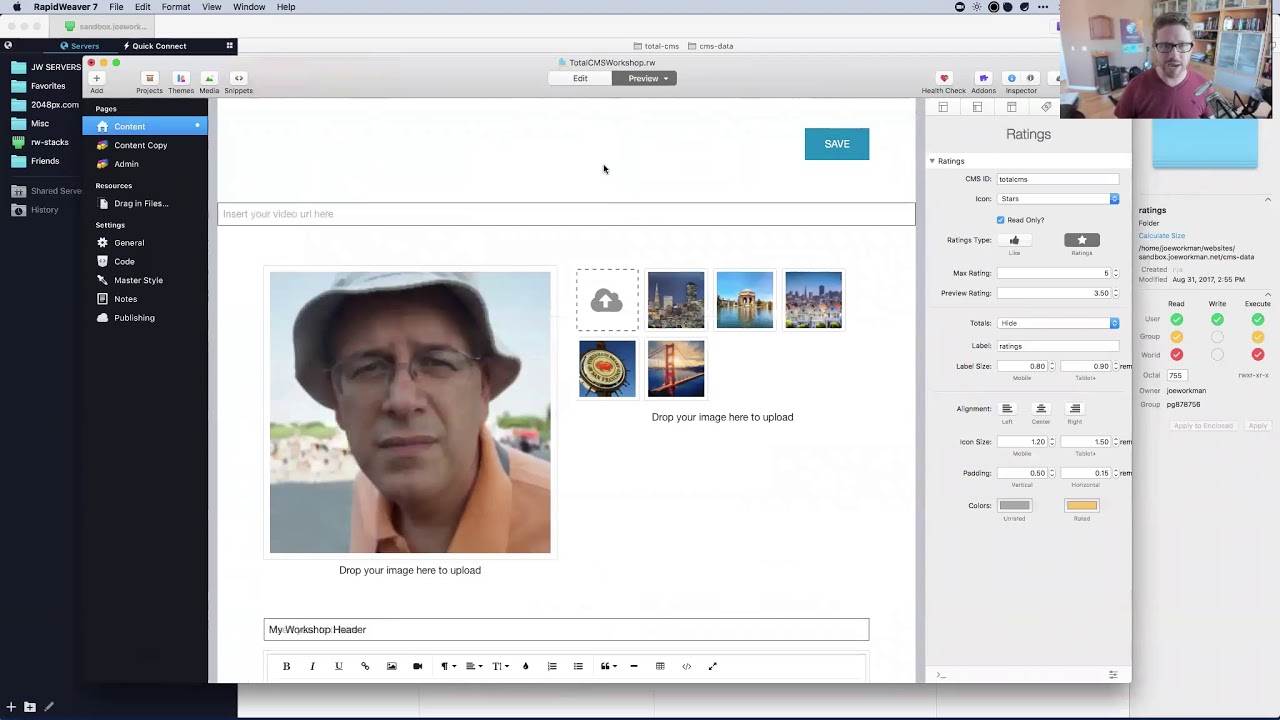
00:07 so total CMS has a bunch of other stacks that we haven't even touched based upon
00:13 yet right um so a lot of them are pretty
00:19 simplest it's pretty simple right there they're not rocket science some of them are really really cool so let's go over
00:27 those right now um I'm just kind of I'm gonna go through these pretty quickly so we can get into blog because blog has some really meaty
00:33 cool stuff going on okay um video pretty straightforward
00:38 right the video stack you give it an ID placeholder essentially what you can do
00:44 is you can type in a YouTube URL venue URL Wistia URL okay and it will display
00:52 that video wherever you want on the content side okay um what I'm gonna do
00:58 is here I'm just gonna write here let's just do this Deline do is we're gonna do
01:09 video and another stack that we're gonna show right now is do two at once I'm
01:15 gonna do toggle okay so the toggle stack this allows you to toggle on and off
01:23 parts of your page pretty simple right okay so here we can save a video here I
01:30 can toggle things on and off pretty simple so let's go in the content side
01:36 let's go ahead and add in the content
01:42 toggle and actually what we're gonna do
01:48 is I'm gonna toggle on and off an entire video so we'll do a a demo of both of
01:55 these things all at the same time oops air content side I put cargo stack yes
02:08 any video video okay these tacks are pretty simple on the on
02:15 the content side for the video stack you put in the CMS ID you can customize the player a little bit you want auto play
02:21 do you want to loop do you want to you know the player color things of that nature right and the toggle is even less
02:26 settings right you put in the the CMS ID and then do you want you know show basically when the toggle is on show
02:35 this when it's off shows something else right so you can do that kind of an if-else logic so right now the video
02:43 will be displayed when this toggle is on okay so we're kind of doing two things all at once so right now let's go to the
02:52 admin page let's actually save a video now video is very similar to the tech
02:59 side where if there is no video URL nothing will be displayed right so let's
03:05 go ahead and just save in a YouTube URL there we go there's a YouTube video just
03:11 gonna save that and let's go ahead and toggle that on okay now chances are in
03:17 the admin area you're gonna want to have some sort of label or description right eye on purpose I've made all the CMS
03:23 areas very generic right because I want I want to give you the user the ability
03:29 to add labels or however you want to style the admin area okay so they are
03:35 done and made generic on purpose here I've saved the video URL and I've
03:41 toggled it on okay now if I go ahead and just preview the homepage we have the
03:51 video right okay so if I go back I'll let's say I want to just toggle that
03:57 video off right and this is a YouTube video I can play it I won't right now but um it does display the video okay um
04:03 if I go back to my admin page
04:09 okay we'll see that the toggle is on if I go ahead and toggle that off okay and
04:15 then go back to the homepage of the content side will see that that entire
04:24 area now is gone right so that's a great way of toggling off you can do entire
04:31 layouts right maybe you want to toggle on a holiday special thing or um I know
04:38 the power users of total CMS like they love toggle okay because you can do some
04:45 pretty cool stuff it gives your clients a lot of control of you know maybe you set up three or four different content
04:50 areas and they can toggle all those on and off whether based on whether and I want to display content in there right
04:56 so um I've seen people do some pretty crazy stuff with toggle that gives a lot
05:01 of control to the end user so a lot of stuff can be done with toggle it's pretty cool video is flash based isn't
05:10 flash soon to be redundant well this is using YouTube's html5 player so it's not
05:16 flash because I don't even have flash allowed on my Safari so someone asked if
05:21 there was flash um this uses the html5 player from YouTube and Vimeo and Wistia
05:27 so nope there isn't flash it's html5 video um okay share screen
05:43 I know I did that really quick but video and toggle are pretty simple right you put in a Vimeo or YouTube URL magically
05:50 shows up on the content side toggle you can talk toggle on and off anything that's inside the toggle content stack
05:57 cool stuff okay next up let's look at
06:05 ratings ratings and what else is here oh
06:14 we haven't even the files and depots yet okay we got files and depots to do
06:20 okay so we got ratings feeds got it
06:28 there's datastore
06:38 Oh see you look even me I didn't have those added to the group I don't think
06:43 so there it is was that there before I
06:48 don't know maybe I was just blind to me okay so we got data store Depot's files
06:55 feeds ratings left oh boy man okay um
07:01 ratings ratings are pretty cool okay they allow many different things that
07:07 you can do with ratings okay on the admin side and you can kind of use them
07:13 on many different ways so you can do rating you can do type which is like
07:19 more of a like okay you can do stars okay you can and then you can do a kind
07:25 of a manual you can define the maximum number of ratings okay so you could say you know if you want to ten a ten base
07:31 star rating and you can okay the default is a three star rating okay oh no max rating is ten my bad
07:40 so if we wanted to do a five star rating system we could do that sets we can do
07:45 stars you can do you can do more than just stars right give you circles you can do batteries you can do hearts you
07:52 do all kinds of different stuff okay alignment and then these are a lot of the icon sizes okay so on the admin side
08:01 though basically what this is is just it's just a way of informing you what
08:08 users have rated on the the content side so on in this instance the admin stack
08:14 for ratings is purely a informational tool okay because the real power of the
08:21 rating stack is on the content side so on the content side I'm gonna go ahead
08:26 and add a rating stack to this page I'm
08:32 just gonna delete that toggle okay we're gonna add a rating stack at it right
08:40 sure why not okay
08:46 so here I can do a let's do a ratings a star based system maximum of 5 stars we
08:55 can preview a rating a 3.5 just the preview that we have here we'll use stars the CMS idea is that and then
09:02 these are just all styles so icons eyes colors you know label size all kinds of
09:08 stuff right and then you can also display the totals so you can have the
09:15 totals on the left hide them you can add them on the right okay so you can say how many total ratings are there okay so
09:24 if we go ahead and preview this okay
09:30 we'll see that here what I can do is I set my default rating to be average of 3.5 okay so let's go ahead and let's say
09:37 I want to set this to four stars so I'm go ahead and click on that okay and it
09:43 remembers that now it no longer says three point five it says four stars okay now if I if I select the same star
09:50 rating again it will unselect it right but if I preview or if i refresh this page it'll remember my star rating oh it
09:57 should I was because I clicked it again it unremembered it oh man no five stars
10:07 let's look at the admin side I haven't played with ratings in a long time
10:22 oops right but where to put it let's see
10:40 if we refresh this there should be a ratings
10:53 Oh do ratings let's publish this I think I made it so that's right I made it so
11:00 ratings actually totally forgot about this ratings do not work inside rapidweaver um on purpose i planned it
11:07 that way so that you can't gain the reigning system by just like clicking and rating locally um it has to be on a
11:14 published page um totally forgot about that makes sense now okay so here now
11:24 I'm on the content side this is what I would expected we have zero stars right now I click four stars okay
11:32 it submits that to the CMS and if we want to see kind of what's going on in the CMS we should now see ratings okay
11:39 and we have our total CMS there and it if we open that it tells us how many
11:45 it's kind of a little small little database that tells us how many scores we have and whatnot
11:50 okay so if we go back to Safari and then
11:56 we go back to our admin area it should
12:01 show a spoon it shows us here that we have one four star rating okay so this
12:08 is a great way on you know on the content side to show you know how many ratings a start to allow customers to
12:14 rate items and then you can see the number of star ratings inside the admin
12:20 area right so here again it's the the saving of the content is done on the
12:25 content side and the displaying of the information is done on the admin side right by design so that's really cool
12:32 you can also do things on the content side where you can dis display the
12:37 current star rating as like a read-only um thing right so if I go back to the
12:43 content page I can say read-only okay and if I were to preview that what it
12:50 would do is it wouldn't allow me to actually rate anything it just purely displays the current rating okay again
12:59 in inside rapidweaver it's displaying a static rating information right because
13:04 it doesn't allow you to change it within rapidweaver but on the publish site for her to publish this I mean it should show a
13:10 static of four stars because that's kind of like the current rating quote-unquote the current rating for that particular thing right so so
13:19 that's the rating stack it's cool it's interesting I do plan on hoping on integrating this into various other
13:25 aspects so like you can have a rating for a gallery ratings for an a blog post
13:31 right so um you can kind of have stars for those things assigned to each individual item that's on the feature
13:38 request list I hope to add it someday soon um but right now it's all
13:43 individually based okay so you can't right now have ratings tied to a blog
13:49 post yet but that is something I think that is would be a really really amazing idea here's the question about ratings
13:59 can i display a rating stack in the content area so users know what the rating of is oh yeah so that's just
14:05 exactly what I just said so I just published that and if we go back to the content area so there we go so that
14:15 that's a static reading so in in this case what you probably want is you would put a content rating stack on the admin
14:24 side so the admin can set the rating okay and then use the content rating
14:31 stack in read-only mode on the on the content side right so does that make
14:40 sense here let me do that again so here let me put let me set up that situation so here we have a read-only ratings on
14:47 the content side okay it's read-only I'm gonna copy this let's go to our admin page I'm gonna put it there oh because
14:56 this is a Content stack it needs the CMS core on the page so I need to do that
15:01 it's gonna require that I do that so I'm gonna just throw it at the bottom here
15:07 so it's out of the way okay oh and it needs it needs this
15:17 okay or just hide it okay so now we're
15:23 gonna we on the admin side now we're on the admin side okay and I'm gonna check
15:29 uncheck the read-only okay so now we're going to we're gonna publish this because ratings only work
15:35 on the publish site right so here we go
15:51 if we go on the admin page now so here I
15:59 can now set a rating so if I go ahead and set this to five okay and then if I
16:06 go back to the content side we'll see that I manually set it to five
16:13 hopefully that makes sense now now gives you the ability to rate it on the admin side and display it statically on the
16:20 content side so you know that is kind of the dual purpose mode of the rating stack where you can use it as a
16:26 traditional customer rating system or maybe you can say like maybe you're reviewing restaurants and you want to
16:32 give this restaurant five stars right you can use that use it for that as well right so that's cool yes I did put the
16:41 content rating stack in the admin area because in this use case I wanted the
16:46 admin to set the rating not the user the user I want the user to display the I
16:55 wanted the user to see the static rating that the admin set okay so in this case
17:00 I there there's use cases for ratings where the contents that could be used
17:06 either place right it depends on what you're trying to achieve but for the major use for most use cases you're
17:12 going to use the rating stack as a as a way for end users to review products or
17:18 something right so in that case most of the time you're gonna have the content stack on the content side because you
17:25 want your visitors reading things right so that's why that is a content
17:31 but there is that use case like we just went over where it does make sense in
17:36 that case to have the content stack inside the admin area because you want the admin to set it at that point I hope
17:43 that makes sense okay next up from
17:54 readings um files okay we're gonna go over files and Depot's kind of at the same time they're
18:00 really simple so a file allows you to
18:06 manage a single Oh am i sharing my screen oh not yet okay a file allows you
18:12 to manage a single file so like a zip file a CSV file something right and
18:20 those are great for when maybe you want the user wants to provide a download or
18:26 a PDF on their website right and occasionally they want to update that zip file or update a PDF file or
18:32 something of that nature right you will then use the file stack for that because
18:37 then um it is a single file that has a dedicated URL to that file and then when
18:44 you drag in a new version it'll replace the one that's there on the server it's pretty much like images right where it
18:50 replaces the images it's just with files right and the file could be anything it could be a zip file via mp3 it could be
18:56 mp4 right so a lot of people uses use the file stack to upload a video file
19:03 okay because they want to sell to host a video and then put in the URL inside the
19:08 HTML 5 video stack or something like that right at that point you're using
19:13 you're now using the file stack to you
19:18 know a lot of the customer to customize html5 videos on their site right so
19:24 there's a lot of use cases for this file stack it could be a customer uploads a
19:29 zip file and you have that the the URL to that zip file on a button right and
19:36 all you have to do is upload a new zip file via the file stack and they
19:41 magically have a new zip file for there load on the button you don't need to upload the button because the URL is
19:47 always gonna be the same right does that make sense hopefully now depo is a
19:53 little bit different depo is kind of like gallery but for files so you can
19:59 upload as many as you want okay and then on the content side there is a great Depot stack that allows you to view all
20:06 of the files in a Depot okay so without further ado I'm gonna jump in and we'll
20:12 see what those are and how to use them really quick but hopefully you can see the difference you know between
20:17 basically they correspond very tightly to what an image and gallery are you just have file and root profiles a Depot
20:23 okay let's dive in and see those sure my screen okay so here we have in the file
20:33 I'm just gonna keep all the CMS IDs pretty much the same from now on there's not much here file you can you can
20:40 specify the exact file that you want the extension so zip PDF PSD it's gonna have most extensions that you're gonna
20:46 potentially want right so in this example if we wanted a PDF we could do
20:51 that or a zip file okay and then you can style it so this is kind of a foundation
20:59 styling if you are using foundation you can hide the file extension from the the view here so you just have filename okay
21:07 you can open the link in a new tab oh wait I just realized that I added in the
21:12 contents tax I was like these are looking like content settings and there
21:18 we go that makes sense and Depot Depot Depot okay here we go file this is
21:29 looking what I thought it would be CMS ID so here we go see my CD and you put in that and you have your file type
21:35 and that's it really really really simple simple stuff okay um this is
21:42 really cool to use with CSV files if you're using something like my power grid CSV stack because that will that
21:49 will take a CSV file and then generate a HTML table based off the CSV file so
21:56 it's pretty cool you can you can use file to upload a CSV file and then get
22:02 the URL to the file for from the admin area we'll see that in a second place that into the URL field inside
22:08 power grid CSV and you magically have a CSV driven table on your website that is
22:15 powered by total CMS pretty cool that's cool stuff similar to the to the html5
22:20 video stuff right very interesting depo
22:26 again very similar very simple settings here you have the CMS IDE and you can
22:33 give a maximum height to the files okay this particular one was a I set it to it
22:38 a zip file I have a zip file on my machine I can just quickly upload yes ok
22:49 so just for kicks I'm gonna go over the content side and let's go ahead and
22:54 configure these two bad boys here and
23:02 we're gonna here content side we have file and we have Depot ok and the file I
23:11 had a zip file so you're gonna want to make sure kind of like on images that the file type matches right and then you
23:18 can style it with various options you can hide the extension open in a new tab
23:23 so when a user on the content side this allows you to click on it ok same thing
23:28 with this Depot you can you can have it the Depot has the ability to display files as a list or files as a grid you
23:36 have some sort abilities and then you can style them and based on the grid and all that jazz you can force file
23:42 downloads which is very cool so when someone clicks on it it'll force the download even if it's a file that could potentially be opened in a browser
23:49 window ok so I'm gonna go ahead and just publish this stuff
24:01 and we're gonna go to the admin side of things okay so here is my file okay it's
24:12 total CMS if now I'm gonna be uploading a file it's called points pop box zip
24:18 okay and if I upload that doesn't matter what the original name was it will be
24:24 renamed to be what the CMS ideas so here I just I kept that as total CMS zip
24:29 right if we look at the at the server and see my state who we can go to file
24:35 and we'll see that there's total CMS dot right there that's the zip file I just uploaded okay now if I were to upload a
24:45 different zip file which I don't think I have one readily available okay it would replace that zip file okay with
24:52 the new one okay now in this Depot down here depots will take anything right um
24:58 so let's say I have this PDF document okay here's a I can upload a JPEG and if
25:07 you notice here what it does is it it actually shows you the kind of the icon for each particular file right so I can
25:15 upload a zip file there right and I don't what else I should be good
25:23 these mp4 files are huge so that's not both of those okay so you see now I have three files there what's kind of cool as
25:29 it shows us the each individual icon for that type of file that it is uh if you
25:35 notice when we hover over these we also get similar to the imaging galleries we
25:41 have the ability to copy the file path right now there are also CMS macros that
25:48 you can get for path so you can do you know CMOS file path and then the the CMS
25:53 ID okay uh but it's really simple just to open up the admin area get the link here copy it then you can paste this URL
26:02 into a button right and then that button will download the zip file okay really
26:08 really simple stuff same thing with depot few um depot refresh so here I can click on that I
26:18 can get the actual download to that file here ok and I can do that with each
26:25 individual file ok and obviously you can delete you can delete a file from a Depot or delete a file on the server
26:32 just by simply clicking the trashcan button ok now on the content side of things um
26:40 this is the file sack and here's the Depot stack right there are many other
26:46 ways to use files and Depot's other than displaying this this is just kind of a convenient download stack right if you
26:52 throw this on the page it'll down you know gives you a cool little icon you can click it and download it okay but if
26:58 you wanted to right you can go here and instead of that let's say I wanted to
27:04 add a button to my page so I'd add up I could add a button here I could remember
27:14 I copied that the URL from the file before oh I guess I didn't copy it I just highlighted it let's go ahead and
27:20 go back to the admin page and I'm gonna go here and I'm gonna copy this I'm
27:29 gonna put that inside of my button set
27:34 link I changed my title to download ok I
27:40 now I have a download button right I publish that and go to the page I now
27:52 have a download button that will download this file so you don't you don't even need to have this file stack you could just
27:58 simply use the the file URL to put in wherever you want okay it could be a
28:05 download button it could be in an html5 video stack it could be inside of a power grid CSV to import you know a CSV
28:13 file um really the the the use case for file is unlimited because there's all
28:21 you need to do is provide a file and you could just keep replacing that file via
28:26 uploading new versions from the admin stack okay firstly you could use depo that way as
28:33 well um you know you can upload a file to a Depot and then get the link and put it in a download but with Depot's the
28:39 the files won't replace themselves like like the file stack will so hopefully
28:45 that makes sense but the depot is is useful for providing you know full lists of you know maybe downloads for your
28:51 students if you're a teacher right you got a little a little class you want to be able to provide them downloads to files and stuff like that all you have
28:58 to do is upload it to a Depot and they're magically all there on the server and this Depot content stack will
29:04 display all of them in a nice download form for you okay so it's very nice
29:19 okay next up is going to be so we did um
29:27 I stopped sharing I see some Q&A let's see checking about uploading what
29:35 about a CRC checking to uploading and or down um Brad I don't understand your
29:41 question if you want to clarify that I can answer that again a little bit later not sure
29:47 what a CRC is okay Trey my screen again
30:03 okay so now we're gonna jump into
30:08 actually let's do data store first okay I think data store is really really cool
30:14 okay um and datastore actually starts on the content side okay so datastore is kind of like
30:22 ratings um you can you have multiple use cases for it okay um where the content
30:29 stack could be used inside the the admin side and vice versa okay but by default
30:38 datastore essentially think of it this way um it's a form a very simple form
30:44 okay but a form and it allows users to submit data and that data is stored
30:52 inside of a CSV file inside the CMS and then whenever someone submits a new
30:58 instance of that form it appends to that CSV file so essentially what it's doing is its
31:04 gonna whenever someone submits a form instead of sending emails or saving to a database it's just taking the data from
31:10 that form and appending it to a CSV file that's gonna be probably the most common
31:16 use case of data store okay now a flipside of that probably the only use
31:23 case I could think of on the admin side is you could have a form on the admin side that populates the CSV file that
31:32 the admin can use to populate a CSV file okay now I have a sac called power grid CSV that
31:41 I mentioned earlier that can take a CSV file and then display its contents to a
31:47 web page now what if your admin use this
31:52 little form to save data okay and then that data from the C's because it's just
31:58 a CSV file on the add on the in the CMS is then displayed inside power grid CSV
32:04 to the content okay now um I'm not gonna be able to just to show you that right
32:10 today right um that part where you know the admin saves it in the power grid CSV displays it um I'd be happy to I think I
32:18 have a demo of it maybe um I think I did a demo of it maybe in one my videos um
32:25 but we are short on time today and I really want to get into blog okay what
32:30 I'm gonna do is I'm gonna show us the the the most you know prosperous use case which is you know having the form
32:36 on your page it could be a subscription form it could be whatever you want a way of capturing data could be any any sort
32:43 of data okay so we're gonna create a form and we're gonna save that to the
32:48 CMS so let's go ahead and share my screen
33:06 okay so like I said um the datastore
33:11 stack is primarily gonna be in the input side is done on the content page because
33:16 we want to get data from the visitors of the website okay I'm gonna go ahead and
33:23 add another one column stack into here I do my traditional three rep okay and
33:32 then we're gonna add a Content datastore stack now the datastore stack is
33:38 essentially just a bunch of inputs okay and you can add as many inputs as you
33:44 want okay now you can lay them out so if you you
33:50 can actually use column stacks so you can add in a column stack and say you
33:55 know I have a field here and I have a field here okay and then maybe you have another field
34:02 there on the bottom that's you know three lines okay so let's say for example this first field is name okay so
34:11 we do name email this is like the most
34:19 generic use case right I mean this is kind of in comment
34:29 okay so here I have a very simple form his name email comment okay um and I
34:36 guess I could add a yeah that's fine
34:52 so I'm going to say Joe hello oops
35:07 um oh we need to have hmm I forget I
35:16 forgot about that okay need to have this save save stack okey-dokey now you have
35:35 a button that's set to form submit
35:50 let's preview this so it's it's not
35:59 gonna baladi that so you know I'm just gonna do tooth the test test test
36:04 save that okay so now if we it's saved if we go to the
36:10 CMS now we have data store and we have total CMS CSV now get total CMS is just
36:16 the CMS ID oh really it's gonna open up that that was a mistake I mean we know I
36:24 had Excel installed on this machine but now with that quit
36:29 cancel that messed it up open with
36:50 I'll just open it up with TextEdit it's fine there we go
36:56 you'll see that the it has Joe test test comment hey pretty simple and if I go
37:01 ahead and and do it again Rob hello
37:07 hello there save okay go back here if we
37:13 were to open with text again you'll see that boom there it is okay so that's CSV
37:23 file every time a new a new submission happens it just appends that to the CSV file okay um very simple concept but
37:31 again very powerful um it's very cool you can have as many fields as you want you could have just one field and that
37:36 basically it'll be one line for every submission very cool so kind of kind of like your your uh your mind is your own
37:45 worst enemy on this one because it's just whatever you can imagine now on the admin side what we can do okay is let's
37:53 go to the admin admin data store okay on
37:59 the admin data store all you do is provided the CMS ID which we'll leave is the default okay and let's preview it in
38:06 the browser okay so on the admin side we
38:13 have a couple things here so it's this it's just the icon of a data store and then there's two buttons below it this
38:19 cloud button download the CSV file so we click on it it will whoops oh it's
38:25 because it's doing it locally or we can edit it okay that download button would
38:31 work if we weren't if we weren't inside preview if we were on the actual published page um the bulk edit option
38:40 allows you to edit the CSV file manually and then poke save a new copy okay so um
38:47 so if I wanted to add you know and you know I wanna say Robert right Robbie
38:55 sorry Robbie Robbie's better click Save
39:01 and if I were to look at the CMS again and open that file we'll see that it
39:10 says Robbie hello there right okay so the admin side it's just
39:16 more of a ability to bulk edit and/or download that file okay I see a couple
39:24 questions that popped up about datastore is it possible to give this CSV headings
39:31 okay so if you wanted to give this CSV headings what I would do is either you
39:36 could bulk edit and put a heading in there or the very first time you save the form make it the headings you know name so um
39:44 you know because the heading is in a CSV file the heading is purely the first entry in that's in the file so all you
39:51 do is the first time you save the form you would just save it as the headings right or again you can bulk edit the
39:57 file in the admin page um and then add the headings you want alright so um that's what I would recommend
40:03 it's just the easiest way to do that okay
40:16 so just a quick rundown on how you would
40:22 if you wanted to um you know put it into you know get that CSV file and put it
40:27 into like power grid um you would just do your website address slash CMS data slash data store slash you know total
40:35 CMS dot CSV or whatever the name of your CSV file is so you'd get the URL right and then you'd simply paste that into
40:43 power grid CSV settings for you know the URL to the CSV file and that's it like
40:49 and it should just work so um really cool stuff power grid is is
40:54 a kind of a complex stack there's a lot of style settings a lot of options um so
41:00 I don't want to go down that rabbit hole right now since I know we all want to get the blog okay next up last thing
41:14 before we get to blog okay is feeds now
41:19 I said feeds feeds have been they were
41:29 awesome so before we had blogs I had feeds and in the first version at old v1 dot oh
41:35 right and my use case for feeds was not everybody needs a blog um you know feeds
41:43 are great if you just want to post like temporary stuff there's a lot of people I've seen a lot of blogs where people
41:51 like let's say for instance restaurants right they're posting their daily special or their weekly special to a
41:57 blog post and really that data just doesn't make sense for a blog post
42:03 because blog posts really are like in their traditional sense there's
42:08 something that you would go and look up later on right um you know because it
42:14 you know in a blog traditional blog it has a blog post page and you know it's
42:20 for stuff that you would archive and look at later on and feeds were more of like you know stuff that would
42:26 eventually just fall off the feed right now since then obviously we have blog
42:33 and blog is far superior okay um and like I said during lunch I think feeds
42:40 can be improved a lot um I I have ideas for feeds 2.0 I guess we could call it
42:46 um I'm not sure if I'll keep the feeds name actually I might try to come up with it something different for it I
42:52 know I kind of like the beads name though but feeds are there and essentially what
42:58 it is is you have a feed item is one image and a blurb of text that's it and
43:06 you can display these and you can't really view the archive of them um it
43:13 seemed perfectly honest with you um if I would if I were to you know from an end users perspective I'd use a blog instead
43:20 of a feed right now um just because blog actually is powerful enough now um has
43:26 enough settings where you can turn off the things that you wouldn't want for the blog like you don't have to have a blog post page you don't have to link
43:32 out to things but with blog you get you know infinite loading you get a lot more
43:37 filters and it's not to say that um you know feeds can't have that stuff I do
43:44 want to add that stuff um but right now I think you can do a better job with a
43:49 feed with blog then you can with feeds right now feeds does have a lot of
43:55 quirks to it and as you saw some people asking you know some of the status on
44:00 some of it there are some issues with feeds like I think it's editing the feed
44:06 item and changing the image there's there's a there's a there's currently a bug with that you can only have one
44:13 image with the feed item and people want multiple images well you can do that with blog right um so I'm gonna be blunt
44:22 and say right now they're just like I think if you're gonna want to feed you're probably just gonna it probably
44:28 better off using blog you have more options available to you um you don't have to have a blog post page anymore so
44:34 you don't need to law you know link out you can turn off the linking abilities in the blog list okay but with that said
44:42 let's just do it five minute example of what feed can do for you maybe it'll maybe it'll suit your needs
44:49 okay so feeds it all starts off with the
45:01 feed stack okay actually we need two columns we needed two column stack four feeds feed there's actually two admin
45:24 stacks there's the feed list okay and the feed form like how you know saving a
45:31 feed basically okay um and the feed form
45:36 has all kinds of different things and very similar settings to what you've seen in other stacks okay you have CMS
45:42 ID you can change some placeholder stuff you can hide the feed image so if you don't want a feed to have an image um
45:47 you can show the Save button okay um feeds do you have RSS feeds associated
45:54 with them so you can um you know have a feed title and all that jazz uh you can
46:00 give up you know the link the item link should be what page your feet is on
46:05 because feed items don't have individual links so in the RSS feed every feed item
46:11 is gonna link to the same page okay and then we have all the image resizing
46:17 abilities and hip wig options that we'd have from image and hip wig editors okay
46:23 you can also do plain text here as well so all these settings should look very familiar
46:28 they all behave exactly the same as they would if you were doing an image or a gallery or text the feed lists all this
46:37 does is shows you existing feed items so you can potentially edit them delete
46:42 them do things like that okay and then on the content side so
46:49 let's go ahead and alright let's let's actually publish this and what we will
46:54 do is I'll create a few feed items that we can then see now in the in the
47:09 getting started with total CMS and foundation video series that I did I actually did a a pretty decent use case
47:16 for feeds on and it was like to build a team page where um the image I uploaded
47:22 the members you know a team members photo and then the the text portion of
47:27 the feed was like the about that person um it worked I thought it was a really a really decent way of using feeds um and
47:35 it was simple it was you know it pretty much exactly wouldn't need it it didn't need to link out to anything it just and
47:41 it just kind of worked right so let's go ahead and here I'm on the admin page I
47:46 did publish it though it's for add function there we go I did publish it
47:54 might as well use the published version okay so here are the the list is over
48:01 here but we have no feed items yet so there is no list um hit point has a lot of stuff um one thing I should notice
48:07 that I should note that I didn't earlier is that hip wig it's that all these settings are kind of global right so um
48:14 I'm gonna just simplify hip waiting a little bit we don't need all this jazz
48:25 binary oh just simplify that page a little bit
48:32 so I can do now is I'm just going to let's drag in an image and I'm just
48:44 gonna type in some hip some we're gonna save okay
48:50 and there goes it refresh my page and now I have my first my first up feed item right I'm gonna go ahead and let's
48:56 just add in a couple more feed items here I don't want those images let's do that
49:03 image more hip some text and just for
49:13 kicks I'm gonna do one more so there we
49:28 have it I now have three feed items okay um here I can go ahead and edit the alt
49:34 tag information for the image in that feed okay this is where I can get the URL to the RSS feed for this feed okay
49:43 this is where I can edit the feed item okay so you should be able to edit the
49:49 image change the text around and click Save okay and then you can also delete feed
49:56 items as well so you can click on that it'll confirm do you want to delete it you can say okay and they'll delete that
50:01 post okay so really simple right um
50:08 let's go ahead on the content side and let's start displaying these things right so let's go to if you remember how
50:17 the original version of blogs looked like blog you know I think it was like
50:22 the original 12.0 blog was a lot
50:30 different than it is now and it was it was because blogs kind of was based off
50:36 feeds and it was basically like a more powerful feed right which it was but
50:42 then it turned into its own set of things and there's a lot of really complex settings
50:47 here that I think blog does a lot better now in feeds so basically here in feeds
50:52 you can you have multiple layouts right so we have car a card layout and a list layout okay you can image a line left
51:00 right center or change the image width and the padding's and do you want to
51:06 flow the text around the image or don't you know you can have a read more button
51:11 so that if the text in a in an item is too much it'll it'll pretty much it'll
51:20 it'll shrink it and then it'll put like a little read more link then it'll use JavaScript to kind of you know flow that
51:25 text down it's not like the read more in blog okay it is different and then you
51:33 can you can provide the the height the trigger height for if a feed is greater
51:38 than you know 200 pixels tall shrink it up okay so let's go ahead and just
51:45 preview this right now let's see how it looks
51:51 so here I mean it's a decent it's a feed right so here I have um you know I
51:56 didn't adding padding and probably need to add some padding here um you know you could alternate the colors so if I click
52:02 on alternate colors we could you know have you know the item color words are
52:07 different so just a different way of providing data right it could be you
52:14 could use this data for so many things it could be like I have here where it's showing you know a picture of a person
52:19 and some information about it it could be this week's specials right um but the
52:26 whole thing is it's you display a certain number of those feed items and ones that are older you just you don't
52:32 see right there just kind of a fine a fade off the page and they're gone right I mean they're still in the CMS they're
52:38 not gone but um you'd have to have another page to display older ones or something like that right um the control
52:46 for you know loading older feed items isn't there I agree that it needs to be
52:52 there um but the stack needs to be completely redone and done better kind of more how like blog is done
52:59 it it needs it needs some improvement but with its implementation of what it
53:04 is now it works right it's simple you can have a picture and some text and
53:09 then you can add that to your to your sites right so if you have some sort of
53:15 repeating content okay um feeds can be great for that where you
53:21 know you have you know you know maybe it's just reviews right you want to add a new customer review to a page right
53:29 and so you add in that you know that as a customer view and then maybe in the in
53:35 the feed in the stack okay on the content side on you can actually like shuffle the feed items so instead of
53:42 showing the same three results right like four here let me do it max count so
53:48 here I have max count three so we can do shuffle feed right let's just do let's just do this well do two so you can
53:58 display different amount of feed items based on mobile tablet and desktop as well so you can show more on desktop and
54:04 and less on tablet right so here I'm
54:10 shuffling the feed and I'm only showing two okay so here I'm showing these two items okay and if I get out and get back
54:17 in it should shuffle it and show me a different two items and it is right so now it's showing me different two items
54:22 okay so it's the way maybe you use it you know for you know user testimonials
54:28 and or quotes right where you can just add stuff maybe a little image or just
54:34 text right and then just have a way to you know display a certain number of those right so that's the use case for
54:41 feeds they're very simple right now can they be made more complex and a more
54:47 feature-rich definitely will it happen definitely when will happen I don't know
54:54 so um but for right now feeds works um and they work in simple use cases some
55:03 people try to use them I think for too much need they try to make feed into a blog and at that point just use a blog
55:09 right


