
Stacks Guru is born from the need to search the vast number of videos out there on stacks built for Stacks Pro and the Stacks 5 plugin for Rapidweaver.
We have scraped over 500 videos to get the transcripts for each in order to make the spoken word searchable.
Please use this free tool to help you learn and discover the awesome power that Stacks and the stacks made for Stacks have to offer.
00:07 hi this is Rob from Joel workman stacks
00:10 and today I'm going to show you how to
00:12 use Adobe Typekit with rapidweaver
00:14 now Adobe Typekit is a really cool place
00:17 to get some fonts not all of them are
00:19 free but you can pay for fonts and get
00:23 other fonts I'm gonna show you a basic
00:24 way to use the free fonts and I'm also
00:28 not gonna show you how to set up Adobe
00:30 Typekit it's pretty simple to do but
00:35 that's something you can do on your own
00:36 okay when you're looking for a font
00:38 though you're gonna make sure that it's
00:39 can be used on the web so it'll have
00:42 little arrows here and I'll say web use
00:45 doesn't matter if it's Dex desktop user
00:48 or not but you want to make sure it is
00:49 web use okay I will go through a little
00:53 bit of it you will want to use this font
00:54 and click on it and you'll then want to
00:56 click on the web and you'll want to add
00:59 it to a kit okay and I already have a
01:02 kit set up called my test kit and once
01:06 you get that your kits will be listed up
01:08 here okay so you want to go to your kit
01:12 and click on it my test kit and when
01:17 that what that will do is pop up another
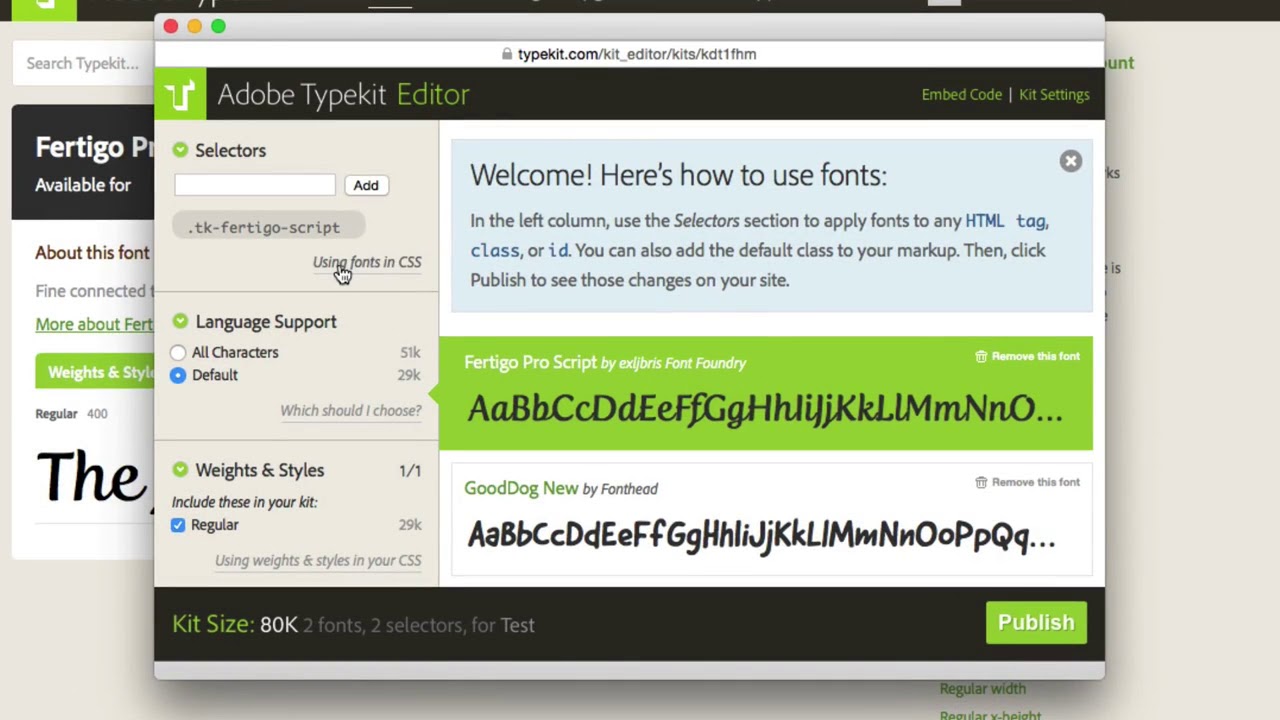
01:19 window okay and this is your kit and
01:22 will list all of the different fonts you
01:24 have and I only have two i have vertical
01:26 Pro script and good dog new I could use
01:30 either one where you're gonna use a
01:31 vertical Pro script okay anytime you add
01:34 new US fonts to your kit make sure you
01:39 publish so when it goes to access the
01:43 kit it will know that it's there if you
01:46 don't publish it won't give you access
01:49 to those fonts so make sure you always
01:51 publish all this isn't gonna publish it
01:52 to your website it publishes it to Adobe
01:55 Typekit okay this is the Adobe Typekit
01:58 editor and we're gonna be using this a
02:00 lot today okay first thing you want to
02:04 do is get some embed code okay so you'll
02:11 click on the embed code it'll pop up
02:13 with this job
02:13 script code for whatever name of your
02:16 kid is called of course mine's called
02:17 test and we'll give you the default
02:19 default embed code if you want to go
02:22 ahead and click on the advanced go ahead
02:24 I'm just gonna show you how to use the
02:25 default you want to highlight that and
02:28 copy it then you're gonna put this into
02:31 your Rapid River project now you could
02:34 do it one of two ways you can open the
02:35 inspector
02:36 you could go to here and put it in the
02:41 header and paste it there but that'll
02:43 only work on this page we suggest you
02:47 use rapidweaver 6 if you're using
02:49 wrapper weaver 6 their new site white
02:53 code
02:53 okay so then you'll want to scroll down
02:56 to the head area paste it in there now
03:00 there's just one change you want to do
03:02 with the color where it says source
03:04 right here you want to add HTTP colon
03:15 there we go and that's rapidweaver 6 is
03:18 a code finishing thing and I wish we
03:21 could turn it off but we can't so but
03:24 you add HTTP colon in there leave the
03:27 back slashes leave the rest now that
03:29 you've added the code go ahead and go
03:31 back to your main web page and go to the
03:34 site Styles we're gonna want to use the
03:36 site Styles stack set up and you want to
03:39 use the foundation text area but before
03:42 you do that you have to go back to
03:44 Typekit page so you want to always leave
03:46 this open when you're doing this and
03:48 then you want to click on this little
03:50 area here called using fonts and CSS so
03:53 you click on that and it gives you a
03:54 whole bunch of different things that you
03:56 can use the only thing you really need
03:57 here though is if you're using you want
04:01 to use the font family name and that's
04:03 this thing right here and you don't want
04:04 to get the quotes so you highlight just
04:07 the name copy it out then you can go
04:10 back to your website in rapidweaver your
04:15 insight Styles find the foundation text
04:18 setting and site styles and this one
04:20 moment be open sans or Helvetica new or
04:22 whatever was chosen but you want to
04:24 choose custom definition
04:26 you do that it'll offer you a place to
04:28 put the font family name and that's
04:31 where I pasted it vertical script okay
04:34 once you're done all you have to do is
04:36 publish okay if you preview it's not
04:40 going to show it Adobe Typekit needs it
04:44 to be published on a page for it to work
04:46 so you want to make sure that you have
04:52 it type it right when I just sing an
04:54 error I'm gonna fix real quick okay so
04:59 once you have everything set up you want
05:01 to click on publish and I'm gonna
05:02 publish that real quick and it's done
05:09 okay but before we see what the page
05:12 looks like I want to show you how you
05:14 can do it in letterpress now in
05:18 letterpress it's the exact same way you
05:20 want to make sure whoops sorry
05:22 I want to make sure the code is in
05:25 either the head area of the site
05:29 settings site white code or in the page
05:33 inspector for that page in the header
05:35 area okay if you're using what happened
05:39 Weaver six we suggest to put in the site
05:41 white coax and they'll be used at every
05:43 page then in the letterpress you
05:46 probably want to turn off the shadow I
05:52 have turned it to none you could keep a
05:54 shadow if you want depending on the font
05:57 you're using but I would turn it off or
05:59 at least try not to use too much shadow
06:02 with it
06:03 you can change the color if you want
06:05 let's make this a purple and then down
06:08 here where it's a style it's normally
06:11 chosen as theme font okay but what you
06:14 want to do is go down to the bottom and
06:15 choose custom definition again again
06:17 that will bring up an area you'll want
06:19 to type in vertigo script the custom
06:21 font family name and then you are ready
06:24 to go again in preview and I'm using a
06:27 different theme on this page I'm using
06:28 the Tesla theme by elixir it's not gonna
06:32 show in preview so let's publish this
06:34 page as well
06:40 and click on done now we're gonna visit
06:44 the page so and I have that set up here
06:48 I'm gonna refresh it real quick and
06:50 there you'll see the script is there and
06:53 it's here you notice it's not in the
06:55 text and that's because in the in the
06:57 site Styles I only set it for h1 tags so
07:00 any h1 tag I have is gonna have that
07:04 font now let's look over at the
07:07 letterpress page okay I don't have it
07:09 set up for the title there is a fact on
07:13 this with letterpress you can look on on
07:15 making the title work but we're not
07:16 gonna go into that right now but as you
07:18 scroll down you'll notice I have it set
07:20 here with a header one thing too so it
07:23 shows the Adobe Typekit with letterpress
07:25 in that font the script font so that's
07:31 adding Adobe Typekit to a website either
07:34 using the letterpress stack or using
07:37 foundation now you can use the
07:41 letterpress stack with any other theme
07:42 it'll work no problem as I showed you
07:44 was working great with Tesla you can
07:47 also if you want to have it as your
07:50 basic text down here you can put a
07:53 letterpress text box let me show you
07:56 that real quick there is a letterpress
08:01 text box and you can use that put it in
08:07 here put the text you want in but then
08:12 you have to again adjust the settings
08:19 choose purple again I need to get the
08:23 font name and let's go back down here
08:29 the letterpress box change the theme
08:31 font to custom definition paste it in
08:35 there let's publish well it's done let's
08:41 look at the page again and refresh it
08:48 interesting refresh it there you go
08:52 sorry click on letterpress and now all
08:55 of the text will be in that font so with
08:59 letter Pro other than down here if you
09:02 want to use it down here again look at
09:04 the letterpress site it will show a
09:06 Doc's page will show you how to do that
09:08 so that's a way you can use it with any
09:13 font on with letterpress using the
09:15 letter press box stack so I hope you've
09:18 enjoyed this FAQ these this one was a
09:21 great one to make and I enjoy doing
09:23 these for you guys so happy weaving
09:33 you


