
Stacks Guru is born from the need to search the vast number of videos out there on stacks built for Stacks Pro and the Stacks 5 plugin for Rapidweaver.
We have scraped over 500 videos to get the transcripts for each in order to make the spoken word searchable.
Please use this free tool to help you learn and discover the awesome power that Stacks and the stacks made for Stacks have to offer.
00:09 so font awesome five is finally here and
00:13 foundation six comes with a full pro
00:15 license or font awesome five that is
00:19 amazing now just a really quick caveat
00:22 you are licensed to use font awesome
00:24 five Pro inside all of your foundation
00:27 six websites forever
00:30 now this is amazing because right now as
00:33 of today font awesome five pro cost $100
00:36 per year and you get it included with
00:40 the cost of foundation six it's all in
00:43 one you can use it as much as you want
00:44 that is amazing
00:46 but again you can own you are only
00:48 licensed to use font awesome five Pro
00:50 icons inside foundation six built themes
00:54 and websites
00:57 okay so how do we use font awesome five
01:00 you notice there are two features that
01:03 you can add inside site Styles first is
01:06 CSS and fonts and the other is j/s and
01:09 SVG
01:11 the implementation that so font awesome
01:14 supplies to different implementations
01:16 I'm not gonna go into the various
01:18 differences in this particular video um
01:20 but just for now I'm gonna say if you're
01:22 just getting started go ahead and use
01:24 CSS and fonts okay um this will work
01:28 exactly how font awesome for worked for
01:31 years um the font files are relatively
01:33 small a little bit smaller than what the
01:36 J's and SVG packages are um and I think
01:40 for majority of the use cases this is
01:43 gonna work perfectly for you okay so
01:46 once we've added this to our site style
01:48 stack we can now use our font awesome
01:50 snippets wherever we want okay
01:52 now inside this we will notice that font
01:55 awesome five loads multiple different
01:57 icons okay my icon sets so every single
02:01 icon comes in a different weight so
02:05 there's solid icons regular light
02:07 duotone and then there's some brand
02:09 icons okay now there is a setting here
02:13 I'm not gonna really review in this
02:14 video but you can upgrade FA for snippet
02:18 so if you have um some text or content
02:21 that had font awesome for icons if you
02:24 include this it'll automatically upgrade
02:26 those icons to font ah some five
02:29 versions that's really cool so you don't
02:31 need to redo all of your snippets and
02:33 stuff like that so um if you need to
02:35 upgrade font awesome for snippets go
02:37 ahead and in check this and it will
02:39 automatically upgrade all those for you
02:41 okay so a lot of times what we're gonna
02:44 want to do is you can just select the
02:46 font weights that you're gonna want to
02:47 do now chances are you're probably gonna
02:49 use maybe brands and maybe one other
02:52 icon set I definitely do not recommend
02:54 you use all of them a you want to have
02:57 consistent look on your sites you want
02:59 to use the same um weight icons okay and
03:03 that's a lot of icon that's a lot of
03:06 fonts to load on your page just for some
03:09 icons okay so we want to make sure that
03:11 we are being conscious of the
03:14 performance of this because we are
03:16 downloading a bunch of uh you know font
03:18 icons and so we want to make sure that
03:21 we're not loading more than what we need
03:27 so now that I have I've added these
03:30 solid icons here how can I go ahead and
03:33 add this right so here I just I supply a
03:36 sample snippet right here inside the
03:38 settings let's just copy that and what
03:41 I'm gonna do is I'm actually just gonna
03:42 go and we're gonna add a text stack to
03:44 the page and I'm gonna select all the
03:48 default text delete it and paste in my
03:51 aunt awesome snippet
03:53 there we go you look I have an icon
03:56 magic now styling this is a lot like
04:00 styling text actually okay we have a few
04:03 options for styling a um it will use the
04:06 text color okay so like if I were to add
04:10 let's just use the the default text all
04:13 play with the default text color here
04:14 just for fun I'm going to change the
04:16 default text color to be purple or red
04:19 and what you'll notice is the icon
04:22 follows the text color
04:25 okay let's go ahead and change that back
04:30 and what I'm going to do is I'll show
04:31 you how you can define default font
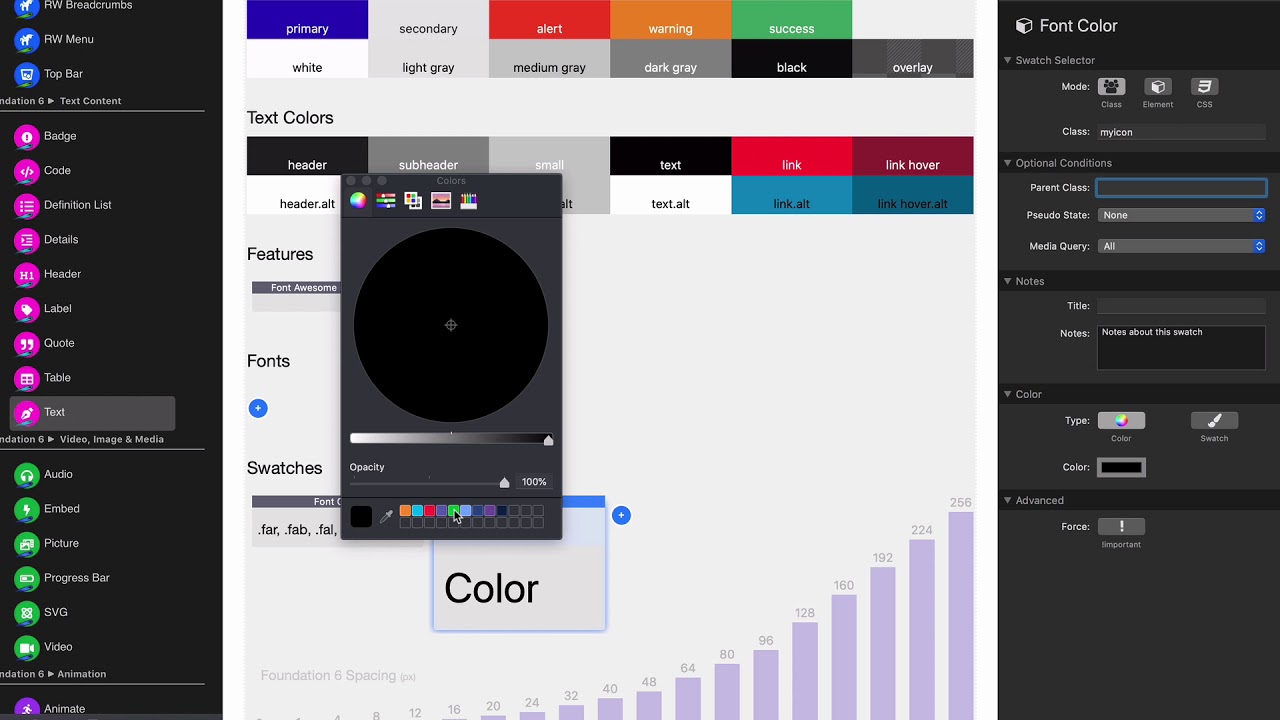
04:34 colors for for the page so just go to
04:37 your swatches and go to font color okay
04:39 and then what you can do is there is an
04:41 element and you can choose font awesome
04:43 icons and what this will do is this will
04:45 create like a default color for all the
04:47 icons on your page
04:50 and so let's just go ahead and select a
04:53 color let's use red okay just because
04:56 red we can see that really easily so as
04:58 you see here even if I add text within
05:01 my icon
05:06 okay we'll see that the icon is while
05:08 the text is black okay the icon is still
05:11 red because we've created a swatch that
05:14 assigned the default color for all icons
05:16 on the page to read
05:19 okay but what if I want one icon to be a
05:23 specific color okay so let's let's do
05:27 that okay let's do font color and let's
05:31 just go ahead and do i'm just use my
05:35 icon for right now and let's do a color
05:39 of green okay and so what i'm gonna do
05:43 is i'm going to copy this class
05:46 and if we look in here if we look at
05:49 this code okay you'll notice that this
05:51 is I class equals oh well I know what a
05:55 class is right I'm a foundation 6 Pro I
05:59 know what classes are I think I could
06:01 just put my icon inside there so here we
06:05 have F ASFA flag my icon
06:09 and voila we've affected this color of
06:14 the icon with my swatch how cool is that
06:19 now we can use icons wherever you want
06:22 on wherever you have content inside
06:25 foundation 6 right so you can use the
06:27 inside your menus you can use it inside
06:29 your buttons you can use it inside text
06:32 right you can even use it inside your
06:34 page names in rapidweaver
06:39 so if you're using the rapidweaver menu
06:41 just go ahead into where you have your
06:43 page set and you can set your icon there
06:47 like let's say let's add this as FA home
06:51 and there you go if you see even rapid
06:54 e-rate even encodes the home there so
06:57 you can actually see the icon right
06:58 there inside the the preview pane really
07:02 cool so that's an easy way to add font
07:05 awesome icons directly to your page
07:07 names which if you're using a wrap
07:09 Weaver menu that will translate into the
07:12 wrapper deeper menu for you
07:14 now to know what all the icons are you
07:17 just go to font awesome comm and you can
07:19 go to the icons and there are over 8,000
07:22 as of today there are over 8,000 icons
07:24 that you can choose from it's just a
07:26 huge amount of icons right and so if you
07:30 notice if you just go to any icon click
07:32 on it
07:35 you see the here's the icon here's all
07:38 the weights that you have so again we
07:40 have solid regular light and do a tone
07:44 okay as you see the dual tone has two
07:46 different colors and if once you found
07:48 the one that you want you just simply
07:50 copy this snippet from right there and
07:52 paste that into your rap Weaver project
07:55 really really cool
07:58 and here's just some example uses of it
08:00 right just kind of sheet see you know
08:02 they add a bunch of stuff here
08:04 now font awesome has a lot of other
08:06 features right and I recommend you check
08:09 out the docs so if we go to the docs for
08:11 font awesome you'll notice that on the
08:13 side okay um there's all kinds of how
08:17 ways we can style it if we let's say we
08:19 go to the sizing icons right we can see
08:23 here that we can add various sizes so we
08:26 can do FA - 10 x fa - large okay to give
08:31 that okay now also we could use swatches
08:34 to target icons as well just using font
08:36 size okay because um these do just use
08:40 font size so if these icons sizes don't
08:43 fit your needs you can just simply use a
08:46 swatch to target the font size
08:53 I'm a fun one is rotating the icons this
08:55 is actually really a really fun thing
08:57 here you notice here um like here's this
08:59 snowboarder I'm actually going to take
09:01 this entire code snippet just to kind of
09:03 show you
09:05 and if we go inside rapidweaver I'm just
09:08 gonna paste this directly into this text
09:10 box okay and voila there we go there is
09:14 this same exact thing with the
09:16 snowboarder kind of doing his rotating
09:18 flip right really really cool we can go
09:21 ahead and make the text centered and it
09:23 will Center the icons for us
09:27 so please look through all of the docs
09:29 in font awesome um there are all these
09:32 little classes then you see this ones
09:33 that they rotate there's you can animate
09:36 the icons right so we can go and animate
09:38 the icons we can add some rotating or
09:41 spinning and stuff like that we can add
09:45 bordered we can stack icons as well this
09:47 is pretty cool where you can actually
09:50 take one icon and stack it on top of
09:52 another like for example here here's a
09:54 band symbol stack on top of a camera and
09:58 you know if we wanted that we can just
10:01 simply copy this and there we go right
10:04 there's that snippet so really you can
10:07 combine a lot of stuff here's just
10:09 having a simple icon inside of a circle
10:11 or you know having an in a rounded
10:14 rectangle or rounded square right
10:16 there's a lot of power here um you know
10:20 that you can do power transforms I don't
10:22 have be honest I don't even know what
10:23 this is this allows you to oh yeah how
10:26 you can kind of scale one on top of the
10:28 other and stuff like that um kind of
10:30 interesting stuff right so look through
10:32 these docks there's a lot of stuff that
10:33 you can do here and just copy these
10:36 snippets and use them or wherever you
10:38 want inside of your foundation six
10:41 projects


