
Stacks Guru is born from the need to search the vast number of videos out there on stacks built for Stacks Pro and the Stacks 5 plugin for Rapidweaver.
We have scraped over 500 videos to get the transcripts for each in order to make the spoken word searchable.
Please use this free tool to help you learn and discover the awesome power that Stacks and the stacks made for Stacks have to offer.
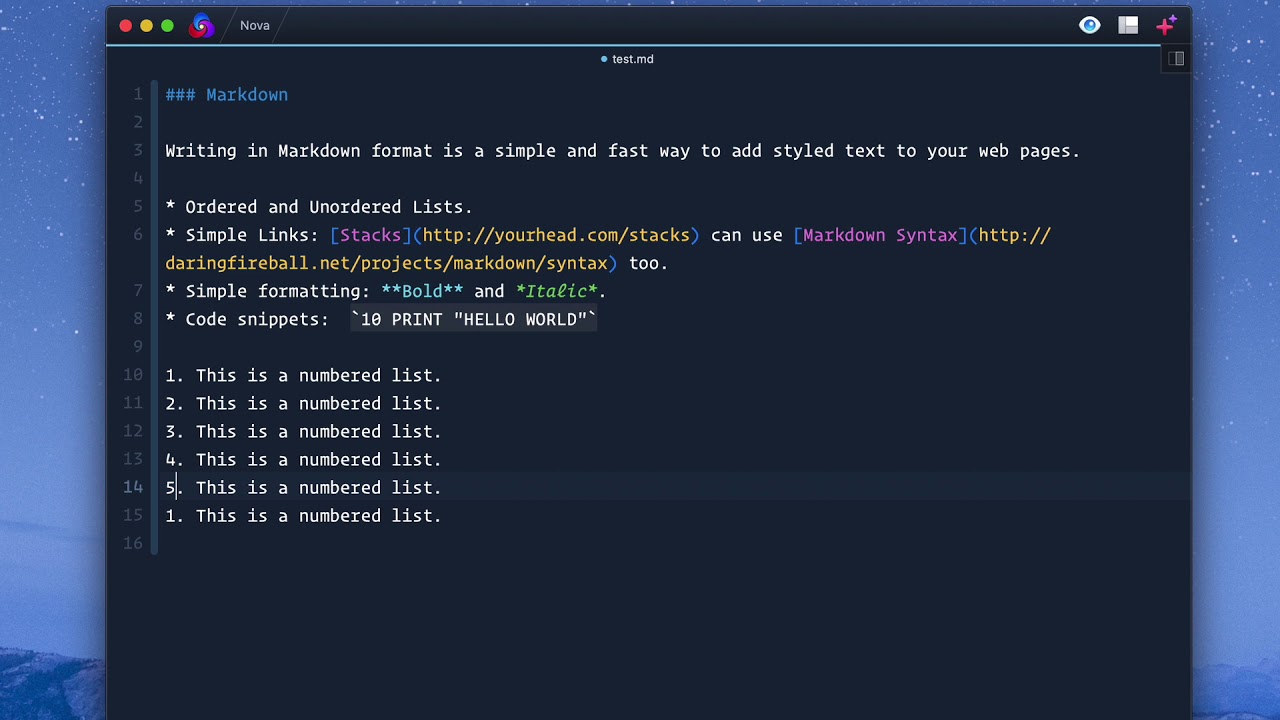
00:08 so in this video we're gonna be looking
00:11 at some more advanced features in the
00:13 tech stack essentially we're gonna be
00:15 diving into markdown and maybe a few
00:17 other more advanced text options with
00:20 swatches so here we are this is markdown
00:24 right this is the default markdown that
00:25 we have inside the text stack what I
00:27 knew is I'm actually gonna use this text
00:30 and edit it inside my text editor so
00:32 that we get and concentrate a little bit
00:34 more on the markdown syntax so here we
00:38 have the default markdown um that I just
00:40 copied and pasted from Rapid River and
00:42 this editor just gives makes it a little
00:45 bit nicer for us to view and edit things
00:47 so first off his header is at the very
00:49 top if you'll notice this is an h3 and
00:52 how do I know that well essentially we
00:55 can count the number of hashtags that a
00:57 header has so in HTML we have h1 all the
01:02 way up through h6 so if I add one hash
01:06 tag that gives me an h1 if I add two if
01:12 I add - that's an h2 all the way up to
01:15 six of them which gives me an h6 okay so
01:19 that gives me a header six tag so
01:22 headers are really simple okay now one
01:25 thing to note is you should have a space
01:27 after your hash tag and it's probably
01:29 best to also keep a new line after your
01:32 header there's a general rule with
01:34 markdown you probably want to have a lot
01:36 of white space so extra extra lines is
01:39 okay okay and text well that's just text
01:44 right so here this is just a simple line
01:46 but if I wanted to add like an entire
01:48 paragraph of text I could do that as
01:51 well right and this will be a paragraph
01:53 and you can obviously you can have as
01:56 many paragraphs as you want and just
01:58 like the header you want to make sure
01:59 you have an empty line below it before
02:01 you start new content so if I wanted to
02:04 do two paragraphs essentially see how
02:07 this I'd want to have an empty line
02:09 between each paragraph that is important
02:13 bullet lists are really simple okay and
02:16 they're as simple as you see here
02:18 they're just asterisks so you just do
02:20 asterisk space and then your text hashed
02:24 and then a newline sastric space in your
02:27 text now if I were to have an empty line
02:30 in between these two lists I would
02:32 essentially have two bullet lists on my
02:34 page so if you want one continuous
02:36 bullet lists you do not want to have
02:38 gaps in between your lines
02:42 now to do a numbered list it's really
02:44 simple you just do one space this is a
02:47 numbered list now you could hit enter
02:53 and then do two and then so on and so
02:55 forth right um however markdown is
02:58 actually pretty clever and what you can
03:00 do is you just type all of them as any
03:02 number you want and it will when it's
03:06 generated into HTML it'll actually
03:07 display as one two three four five six
03:10 seven whatever right why is this cool
03:13 well have you ever created markdown or a
03:16 list and you're like you know what I
03:18 want this bullet list to be number two
03:20 now well if he required that you
03:24 actually had all the numbers correct it
03:26 would be tough because they'd have to go
03:27 and renumber everything but if you just
03:29 make them any random number normally I
03:31 just do the number one okay this
03:35 actually generates proper HTML and
03:37 allows you to be able to change the
03:39 numbered list but you know sometimes we
03:42 really like to see our stuff so you can
03:45 go ahead and number all of this and that
03:47 will work okay um but it is up to you um
03:51 if you will just want to use number ones
03:52 for everything you can do that as well
03:55 okay so what are some of the other two
03:58 kind of trickier formats that we can do
04:00 um first off let's look at bold okay we
04:04 look right here this is a piece of bold
04:07 text so if I wanted to make this word
04:09 simple inside my paragraph bold I just
04:12 put two asterisks around it
04:16 and now I have bold text
04:19 and if I wanted to make the word fast
04:21 italic all I need to do is do one
04:25 asterisk around each so two asterisks is
04:30 bold one asterisk means italic now the
04:34 next bit is probably a little bit more
04:37 confusing and that is links let's look
04:41 at this link syntax right here if you
04:44 notice we have square brackets around
04:45 the word text acts and then we have
04:48 parentheses around a URL so what this
04:52 does is it takes the word stacks and it
04:55 makes a link out of it and it links to
04:58 your head comm slash stacks let's go
05:02 ahead and create a link okay let's go
05:05 ahead and make this markdown we're gonna
05:08 link that to Weaver space so I'm going
05:11 to go ahead and I'm gonna put square
05:12 brackets around and I'm going to put
05:15 parentheses and inside the parentheses
05:18 I'm gonna put in my URL HTTP colon slash
05:22 slash
05:23 ww Weaver's space
05:28 and that's all we have to do okay so
05:32 that's probably the trickiest syntax
05:34 here is this blink syntax now as we'll
05:37 see inside stacks there actually is a
05:39 little link tool that will kind of do
05:42 this syntax for you it's not rocket
05:44 science but this is probably is the
05:46 trickiest part here is creating links
05:48 now a common request that I get is Joe
05:51 how can we open links in a new window
05:54 well this is a special feature in
05:57 foundation 6 only okay but if inside
06:01 this link text if you do inside quotes
06:04 underscore blank ok what this will do is
06:09 this will now open the link in a new
06:12 window
06:14 again this is not a markdown specific
06:16 feature this is a feature that I've I've
06:18 added directly into foundation for us so
06:21 if you do this this will open the link
06:23 in a new window so now that you're you
06:27 got the basics of markdown down um you
06:29 should be going at it like a chain ok
06:32 let's give you a quick preview of what
06:34 that link tool is so here inside the
06:36 markdown if you just click this little
06:37 link tool as you see it kind of puts the
06:39 syntax in there for you and it's nice in
06:42 that it actually puts in the HTTP and
06:46 then at that point you can just type in
06:47 your web address right and it puts in
06:49 the word linked text as well
07:00 you


