
Stacks Guru is born from the need to search the vast number of videos out there on stacks built for Stacks Pro and the Stacks 5 plugin for Rapidweaver.
We have scraped over 500 videos to get the transcripts for each in order to make the spoken word searchable.
Please use this free tool to help you learn and discover the awesome power that Stacks and the stacks made for Stacks have to offer.
00:00 so you bought this awesome new font and
00:03 now you want to use it on your wrap
00:04 weaver sites let's figure it out
00:13 hey everybody Joe workman here and in
00:16 this video we're gonna show you how to
00:18 use your own web fonts using font pro in
00:23 rapidweaver
00:23 so whether or not you bought your fonts
00:26 online from some bundle deal or maybe
00:30 you got them from
00:31 you know ship websites like font shop or
00:34 my fonts or fonts comm right um there's
00:37 a lot of really great things or there's
00:39 a bunch of open-source fonts out there
00:41 as well like lotto is a very popular
00:43 open-source font right that's available
00:46 and we're actually going to be using
00:48 that font in this video okay so there's
00:52 a lot of really great fonts out there
00:54 and you can buy them and now you have
00:57 these font files right so how do we get
01:02 it to work let's jump in and figure it
01:04 out so you've downloaded your fancy new
01:07 web font and you might be a little
01:09 confused because what you notice is
01:11 there are a ton of potential files when
01:14 you download a font right so which ones
01:18 do we want what do we need right so here
01:21 we have with the lotto font we have tons
01:23 of different formats for every typeface
01:25 we have an e OT file a TTF file a wah
01:28 file a waft to file right and we have
01:32 that for every single typeface for every
01:34 weight for every style so non italic and
01:37 italic versions of that typeface right
01:40 so what do we need essentially for the
01:44 web basically you're gonna need the
01:46 waffle file that's the basics right
01:48 every modern web browser will support
01:51 the waffle file so number one pay
01:54 attention to those for your web fonts
01:57 now how do you categorize our web fonts
02:01 what can we use to help manage these
02:04 font files for us so built in the OS 1
02:07 is an app called font book now font book
02:11 you can load your open tight
02:13 phonce right see your OTF fonts and your
02:15 TTFN fonts okay no we'll store those so
02:18 you can at least preview your fonts and
02:20 have a place where you can see
02:21 everything now font book won't store all
02:25 your wha files and woof two files and
02:27 help you manage all that so you're gonna
02:29 have to develop a system inside finder
02:31 to manage those files now there are more
02:34 professional apps out there for managing
02:36 fonts here is an app called font
02:38 Explorer X which is the app that I use
02:40 to manage my font files and as you see
02:44 here it will store all types of fonts so
02:46 it has the open type fonts it has the
02:49 wants for us all managed here and you
02:52 can click on one or multiple fonts to
02:55 preview that font inside the app so apps
02:59 like this make it very powerful um but
03:02 if you're not gonna be using web fonts a
03:04 lot maybe this might be a little bit too
03:06 much for you so for this demo I've gone
03:08 ahead and I've chosen the fonts that
03:10 we're gonna use what we're gonna do is
03:12 we're gonna use Roboto slab for our
03:14 headers and then we're gonna use the
03:16 lotto font for our paragraph text now I
03:20 may want to use italic and bold and bold
03:24 italic inside my content so I'm gonna
03:26 make sure that I load all four of those
03:29 typefaces into rapidweaver so what we're
03:33 gonna do now is I'm just gonna select
03:34 all these fonts and I'm gonna add them
03:36 into the wrapper over seven resources
03:38 now one thing you might want to make
03:40 sure that you do if you're using wrapper
03:42 over seven is go ahead and make sure
03:44 inside your general settings that you
03:46 are using a Portable Document and what
03:49 that will do is it'll make sure that
03:50 your font files are actually stored
03:52 inside the wrap Weaver project so now
03:55 what we're gonna do is we're gonna go
03:56 ahead and start adding our web fonts
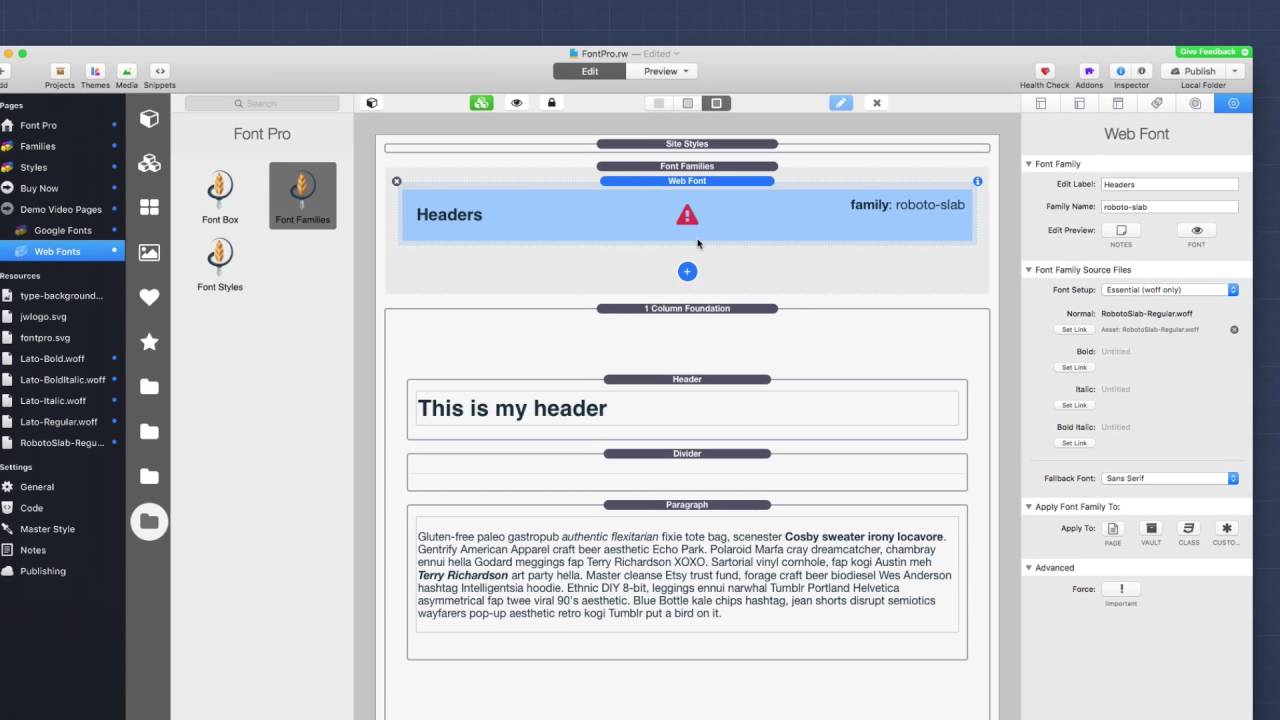
04:00 into rapidweaver so here I have a font
04:03 family stack I'm gonna go ahead and
04:05 click plus and add a new web font so
04:09 this first one let's use for our headers
04:11 okay and remember we're going to be
04:14 using Roboto slab for our font family
04:16 names so just go ahead and give it a
04:19 family name I'm gonna do Roboto slab and
04:23 just for for safe purposes go ahead and
04:26 make sure you
04:27 use any spaces or whatnot just make it
04:30 you know all one-word pride all
04:31 lowercase but you can make it up
04:32 whatever you want okay next up what
04:36 we're gonna do is we need to define what
04:38 our font files are so we only needed one
04:41 Roboto slab font file so we're gonna go
04:44 ahead and load that into the normal
04:46 fonts here so I'm gonna go ahead and
04:48 click set link now what you may think
04:52 that you could do is go ahead and go
04:53 here and select the Roboto slab regular
04:57 waffle file okay and click set link now
05:01 if you were to do it this way it will
05:06 work once you publish your web page
05:10 however as of right now in inside
05:14 rapidweaver you need to actually put in
05:17 the full URL to the resource so what
05:20 we're gonna do is we're gonna go to
05:21 Roboto slab and then if you notice here
05:24 is the link and what I'm gonna do is I'm
05:26 gonna say copy URL and then I can go
05:29 back to my web fonts and then I can
05:32 click on my normal web font here and
05:34 instead of selecting the resource I'm
05:36 gonna say URL and I'm gonna paste in the
05:39 URL to that file now I do need to make
05:45 sure that that that font file is
05:47 published to my server right but once
05:50 that font file a resource is published
05:52 to my server everything will work
05:54 properly inside rapidweaver
05:56 so I've already gone ahead and made sure
05:59 that that font file was published to my
06:01 server and now I'm gonna set the
06:03 fallback fall now Roboto slab as we said
06:05 is a serif font because it actually has
06:07 serif attributes in the font so we're
06:10 gonna set the fallback to be serif okay
06:13 and then last thing we're gonna apply
06:16 this to a vault now if you notice inside
06:18 edit mode we have a little warning
06:20 symbol and we have that warning symbol
06:22 here because we actually haven't applied
06:24 this font family to anything yet so no
06:28 matter what you apply it to once we
06:30 click on a button that warning will go
06:32 away for simplicity sake I'm just going
06:35 to go ahead and assign this to a font
06:37 vault and we're gonna sign that default
06:39 vault one
06:40 now I can go into my header here and
06:42 this is a foundation header stack and I
06:44 can go ahead and apply that to be to
06:46 actually use font fault one now if you
06:49 actually want to preview this typeface
06:51 inside edit mode you can do that this is
06:55 a great way to ensure that the fonts are
06:58 actually loading properly without
06:59 toggling back and forth to preview mode
07:02 so in the settings you can click on the
07:04 little eyeball icon for the font and
07:06 when you do that you will notice that
07:08 the typeface has been applied to all the
07:11 headers that it should right now you'll
07:14 also see the little eyeball indicator
07:16 inside edit mode and the reason this is
07:19 here is that so you realize when a font
07:22 is in preview mode now when it font is
07:26 in preview mode okay it could cause some
07:29 jumping in stacks edit mode so it's not
07:32 recommended that you actually leave this
07:34 on because it will cause jumping as
07:37 you're editing your stacks page so once
07:40 you're happy that the font is actually
07:42 loading properly go ahead and turn that
07:44 off so I've gone ahead and configured
07:46 the Lotto font for our paragraph type
07:50 and if you notice I loaded the normal
07:53 bold italic and bold italic typefaces
07:57 for the lotto font family and I've gone
08:01 ahead and set the fallback font to be a
08:03 sans serif font because that's exactly
08:05 what Watteau is it does not have serif
08:08 attributes then I've gone ahead and
08:10 assigned this lot of font family to use
08:13 of font vault number two and I'm going
08:17 to go ahead and set my paragraph and
08:19 make sure my paragraph is also assigned
08:21 to font vault number two so let's go
08:24 ahead and preview this page now so
08:26 you'll notice now that our fonts here
08:29 are now being loaded from our web server
08:32 and it's using the actual font files
08:34 that we uploaded now one thing I want to
08:37 point out is inside this paragraph most
08:39 of it is using the normal weight and
08:41 normal typeface for the Lotto font
08:44 however there are attributes of the
08:47 paragraph such as this line right here
08:49 is using italic and then we have some
08:52 bold text right here
08:54 then some bold italic text down here now
08:59 the browser because we've loaded each of
09:01 those typefaces is loading the exact
09:04 typeface that we need to ensure that all
09:07 of the text throughout the entire
09:09 content is crystal clear and sharp so if
09:13 I hadn't loaded all of the typefaces
09:16 what's gonna happen is the browser is
09:18 gonna flow ready tasks and what that
09:21 means is it's gonna take the normal
09:25 typeface and just simply skew it off a
09:28 little bit to make it look italic right
09:30 that means it's not gonna be crystal
09:33 clear it's not gonna be sharp okay same
09:36 thing goes with bold text if you don't
09:38 load the bold typeface for a font family
09:41 and you actually use bold content the
09:45 browser is gonna phone during the normal
09:49 typeface and just trying to make it a
09:52 heavier weight so font designers have
09:54 taken a lot of effort to make sure that
09:57 they've designed a font so that it looks
09:59 crystal clear and sharp for all
10:01 typefaces so that means we should load
10:04 all the typefaces that we're going to
10:06 use for a particular font so for example
10:10 for the Roboto slab headers I knew that
10:13 I only needed the normal font weight I
10:16 wasn't gonna add any sort of italic
10:18 headers to my page so I didn't need to
10:20 load those but if I did want to use
10:23 italic headers then I would need to make
10:26 sure that I loaded that italic font face
10:29 for Roboto slab one last thing before
10:32 relief inside thought pro in the web
10:34 font stack you'll notice inside font
10:36 setup there is an advanced option now
10:40 what this allows us to do is remember
10:43 when we first looked at the huge folder
10:45 of font files okay now some of those
10:49 font files would be good if we wanted to
10:51 make sure that we supported older
10:53 versions of browsers let's say we wanted
10:55 to support ie8 still or older versions
10:58 of firefox or chrome right now you'd
11:02 have to you know go back and support
11:04 really older versions because really
11:07 woth was supported for a long time
11:09 however if you wanted to okay what you
11:12 would do is you would check advanced and
11:15 then inside ad extensions you would
11:17 check all of the various font file
11:20 extensions that you're planning on
11:22 loading okay then you're gonna want to
11:26 put in the URLs for normal bold italic
11:30 and bold italic that you're gonna want
11:32 to load so for example if we take the
11:37 particular lotto font family okay what I
11:42 would do is I would put in the URL to
11:45 the font file without the extension so I
11:49 put in the URL now this was a bold
11:52 italic URL so it would technically go
11:53 down here right but the point is you're
11:56 gonna put in the URL to your font file
11:58 without the extension the reason is the
12:04 font family stack will then put in the
12:07 extension for every single one that you
12:09 want okay so that's exactly what this
12:13 font setup advanced is for now let's say
12:16 I recommend that you just stick with the
12:19 essential wofe that is what google fonts
12:22 does that's what pretty much a lot of
12:23 the online font vendors are doing
12:25 because that's gonna cover a large
12:28 majority of your user and visitor base
12:32 only use advanced if you're certain only
12:37 use advanced if you're certain that you
12:38 have to support really old browsers so
12:42 that's what fonts everyone right we
12:44 learned how we can where to purchase
12:46 fonts right so you can purchase fonts
12:48 online again my fonts calm fonts calm
12:52 there's some great deals such on has
12:54 mighty deals and a ton of like web
12:57 design bundle websites right there's
12:59 tons of them out there right and of
13:01 course there are great open source free
13:04 fonts that you can do and find online
13:06 right if you Google you know great free
13:09 fonts you'll probably find some great
13:12 ones we use lotto in this demo so you
13:15 know go ahead and download lotto it is
13:17 free and use that and play around with
13:20 it it's a great
13:21 font to learn from now remember in
13:23 rapidweaver it is best to use the urls
13:26 right that way it works both online as
13:29 well as inside rapidweaver so that's
13:33 about it it's pretty simple right
13:36 I hope this video helped you I hope you
13:38 love using your own fonts right because
13:41 it really gives you the ultimate
13:42 flexibility in terms of design and fonts
13:45 really do help take your website designs
13:48 to the next level so I hope you're
13:49 enjoying font Pro and take care I'll
13:52 talk to you later bye
14:00 you


