
Stacks Guru is born from the need to search the vast number of videos out there on stacks built for Stacks Pro and the Stacks 5 plugin for Rapidweaver.
We have scraped over 500 videos to get the transcripts for each in order to make the spoken word searchable.
Please use this free tool to help you learn and discover the awesome power that Stacks and the stacks made for Stacks have to offer.
00:07 well hello everyone welcome Weaver cast
00:10 Weaver cast is a weekly podcast will
00:13 review some great tips and tricks for
00:15 rapidweaver and web design I am Joe
00:18 workman your host I am an independent
00:21 mac and web developer based in the San
00:23 Francisco Bay Area this is show number
00:26 18 and today is februari 10th 201
00:30 Weaver cast is never longer than 1
00:33 minutes so let's get started so today
00:36 I'm a little bit late again no surprise
00:39 but my power was out all day today kind
00:42 of sucked um so I'm here and look at
00:45 night in my office had sit ups and
00:47 spotlights because lighting wasn't too
00:49 great so um anyways so we I got
00:52 something really exciting today I'm
00:53 really excited about this so I've been
00:55 testing stacks to dot five four months
00:57 months and I finally you know it finally
01:02 gets unveiled to everybody tomorrow ok
01:04 so I'm recording this on Monday it gets
01:06 released Tuesday I'm really excited
01:08 because it has some really really great
01:11 features for users and us developers as
01:13 well for us developers it allows us to
01:15 really do some great stuff for you guys
01:18 so we're going to go over i'm actually
01:20 going to do a two part series in this
01:22 podcast that going to go over a few
01:24 features and then in the next podcast
01:26 I'm going to go over another set of
01:28 features so what was what is to dot five
01:31 uh it's a great update it has some
01:35 really minor UI tweaks but some nice
01:36 cleanliness of the UI um and then it has
01:41 some great features such as locking
01:43 stacks viewing stacks hiding stacks it
01:48 has global content how awesome is that
01:50 that's really really really cool Global
01:53 Content is pretty stoked about that it's
01:56 not like my Global Content stack it's a
01:58 little bit different we'll go over that
02:00 and then next is is user stacks now that
02:03 is like really really cool we're going
02:05 to be going over users tax in the next
02:06 podcast but you're going to want to
02:09 watch that one it's going to be super
02:10 cool so um I know we're short on time
02:14 let's jump into some of the features
02:16 okay so here's stacks to dot five never
02:19 to see the UI really hasn't changed all
02:20 that much we still have you know our
02:23 content in the middle our settings and
02:26 so on and so forth but if you notice the
02:27 linen background is now gone it has a
02:30 nice gray gradient um some other general
02:33 styles i believe these that outlines
02:36 around the stacks have been uh you know
02:38 just tweaked a little bit so there are a
02:40 little bit nicer a little bit sharper
02:42 and things of that nature especially for
02:43 retina displays now another minor thing
02:48 that you'll notice is moving stacks
02:50 around the page has become a little bit
02:52 nicer so if I notice as I move this text
02:55 stack up we have a nice blue kind of you
03:00 know shade where that stack is going to
03:02 go so and as you notice the the stats
03:05 will bounce around the page as I move
03:07 them so let me go ahead and do that
03:08 again as we see as I'm moving this
03:10 around page um you know stacks are
03:13 moving and you have a much better sense
03:15 of where the stacks actually getting
03:18 moved to um this is a minor feature but
03:21 I think it's really really great because
03:23 you know we're always moving stacks
03:25 around the page and this makes it much
03:27 nicer to see exactly where your stack is
03:30 going to be positioned on the page so
03:34 what's next as we highlight will notice
03:36 that there is a few new set buttons up
03:41 here in the toolbar the first one is a
03:45 show hide so you can actually hide a
03:48 stack so if you notice here I click that
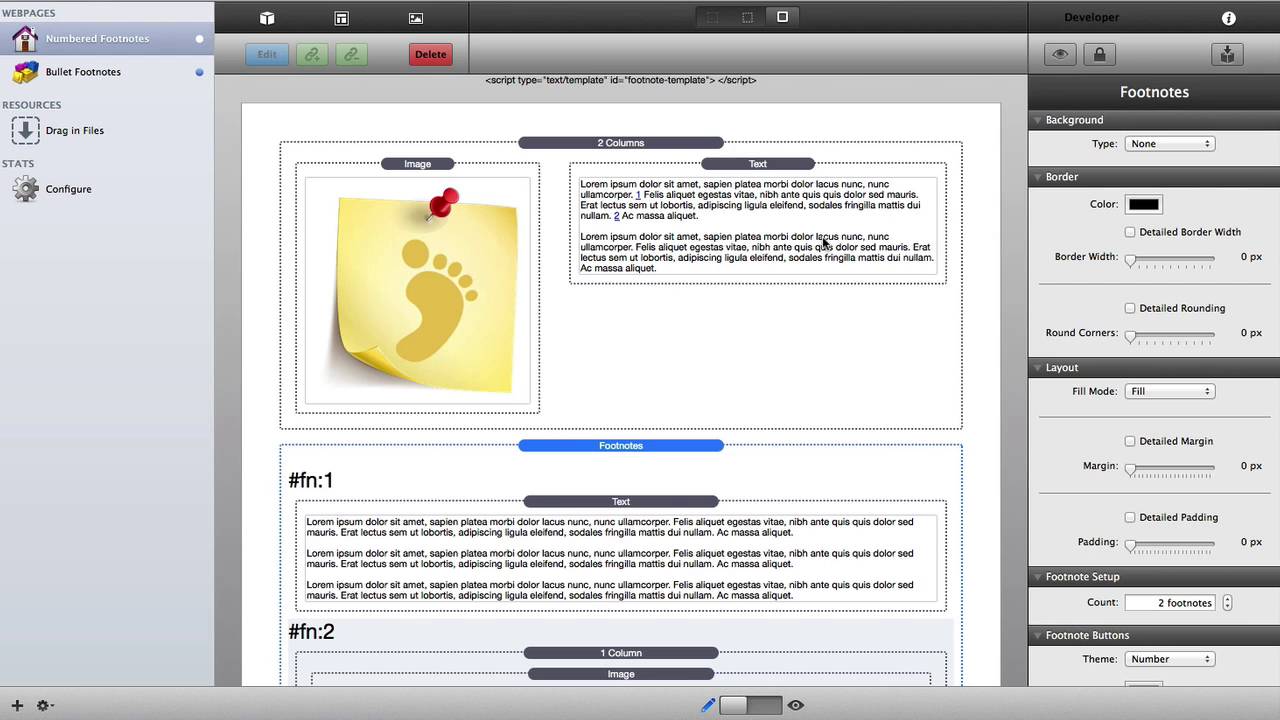
03:51 so I have my footnotes stack which is a
03:53 new stack that I released four stacks 2
03:55 okay make sure you check that out it's
03:58 really cool um and actually what's a
04:01 great thing about this is footnotes is a
04:03 perfect candidate for this once you set
04:05 up your footnote stack um you're
04:08 probably not going to want to see it
04:09 again you're not going to want to have
04:10 to look at it edit mode once you set it
04:12 up so you're fine with hiding it because
04:14 it's not a stack that actually shows on
04:16 your web page at all um you know it's
04:18 it's an effect okay so all the times if
04:21 you if you're done setting up your
04:23 footnote stack you're just going to
04:25 simply hide it so boom
04:27 by clicking that I still see that i have
04:29 my footnotes tack on the page but all of
04:32 its contents is hidden and if I ever
04:35 want to see it again you just simply
04:37 click on the eyeball button again and
04:39 your contents is back so really cool
04:43 feature for hiding content this would be
04:45 great maybe for light boxes and things
04:47 that actually don't show within uh you
04:51 know edit mode or maybe you have a a
04:54 cycler stack or some sort of slide show
04:57 that has a lot of images and it takes up
04:59 a lot of space in edit mode this would
05:01 be a great way of actually hiding that
05:04 content okay so the next button is a
05:09 lock button now this is really cool now
05:12 let's say you work really hard on
05:14 styling a particular stack and you don't
05:17 want to accidentally you know jump any
05:19 settings bump any settings delete some
05:22 content to move content around by
05:23 accident right so what we're gonna do is
05:26 I've worked really hard on this footnote
05:28 stack now I want to lock it okay so
05:30 let's go ahead and click that lock
05:31 button lock boom so what we see here is
05:36 its now turned red so we know that red
05:38 is an indicator that this stack has now
05:40 locked okay now what will also notice is
05:43 all of the edit content that we had okay
05:46 we can't edit it anymore right I can't
05:48 double click on this text and edit it I
05:50 can't add new images if you'll notice
05:53 all of the settings also in the right
05:55 pane are grayed out I can't change a
05:58 thing this stack is locked ok now you
06:01 can still move it around the page so
06:05 there is that it just locks the content
06:07 and the settings now the last feature
06:11 we're going to go over today is global
06:13 content now hold on to your seats
06:16 because this is really cool ok so here I
06:19 have a text area now a lot of times we
06:21 have text that we want to replicate upon
06:24 you know multiple places on our website
06:26 multiple web pages maybe it's a header
06:28 maybe it's some footer text maybe it's
06:31 um you know a list of links um you know
06:35 it could be a lot of different data
06:36 right and this is
06:39 really great way of making that so you
06:41 can have that global throughout your
06:43 site so well you'll notice over here on
06:46 the right pane when we're in text
06:48 editing mode is we have a new settings
06:51 group called global and what this allows
06:53 us to do is we can check global content
06:56 and then we can assign this particular
06:58 Global Content a name and we're just
07:02 going to give it the name of test1 so
07:09 now whenever I use global content and
07:12 they give it the content named test1 the
07:15 content that i added inside here will
07:18 will also be reflected inside that text
07:21 box let's see it in action so here i
07:29 have another page and i have a text box
07:32 here and what I'm going to do is I'm
07:34 going to double click here and i'm going
07:35 to say i want my content name to be test
07:38 one and we're going to say global
07:39 content so we we set the global content
07:46 to test one and boom we now have the
07:49 same exact content that we added in page
07:52 one ok now another thing i should note
07:56 is with global contact you'll notice
07:57 that the outline is green whenever you
08:00 see content that has an outline of green
08:03 that means that content is global so
08:07 again we've seen a couple different
08:09 colors here we have blue is kind of the
08:10 normal okay uh you know the normal
08:13 selected stack grey is an unselected
08:16 stack green means global content and we
08:19 saw earlier red means locked right so as
08:23 a test let's go ahead and add some
08:25 content here i'm going to say i'm going
08:27 to add testing one two three and let's
08:30 go ahead and make it bold okay so I've
08:34 now changed my text now if I go back to
08:37 my original page we should see this text
08:40 be changed because I changed the global
08:43 content and what should also be changed
08:46 on the other page let's go ahead and
08:47 look so I went back to our first page
08:50 and you'll notice that
08:53 scene 1 2 3 he is here and it is also
08:55 bold now one thing I want to point out
08:59 here is that if you notice i made it
09:02 bold and that actually carried over as
09:04 well the formatting that you actually
09:06 change inside this formatting bar will
09:09 be applied to your global content
09:11 however currently if you were to add
09:16 these HTML text formatting options these
09:20 currently do not get assigned to your
09:22 global content okay so if I were to sign
09:26 change the letter spacing to something
09:29 or the line spacing or the font weight
09:31 within these CSS properties those will
09:35 not get applied to my global content but
09:37 everything in the toolbar does so I can
09:40 Center my content I can make it you know
09:43 align right I can add bullets I can you
09:46 know add links all of that works
09:49 properly however again the the
09:51 properties over here in the HTML
09:53 formatting will not now I also want to
09:58 note that these global content are not
10:00 just within the text and HTML stack
10:03 wherever you see these boxes throughout
10:07 any stack they can be used for example
10:12 here's just a few examples here I have a
10:15 left floating image stack that contains
10:17 a text area that can be assigned a
10:20 global content it region a button
10:23 because the button you can double-click
10:25 and change the button text that too can
10:28 be assigned a global content region my
10:32 letterpress stack again you can can't
10:36 you can change the text you can add that
10:38 to a global content region as well so
10:40 any stack that contains a text or HTML
10:43 box can be assigned a global content
10:46 name that's really powerful and you can
10:50 leverage these global contents across
10:52 different stacks and whatnot so it
10:54 really is a great flexible solution that
10:58 can be used in all kites of situations
11:04 so that was really exciting right i mean
11:06 we saw some what looked like kind of
11:08 simple solutions but um you know those
11:11 are really going to solve some great
11:13 things for us the global content is
11:15 really going to save us some time with
11:18 you know trying to copy data throughout
11:20 our pages right add it once in one
11:23 location you know assign it an ID change
11:26 the other pages and bam you're done
11:28 right in the future if you ever need to
11:30 modify a footer or header or you know
11:33 some common lists of data just simply
11:36 modify it once publish your site and
11:38 you're done I'm this going to save us
11:40 lots in lots of time um you know user
11:43 mistakes with locking your stacks and
11:46 hiding things I'm it's just gonna make
11:48 you know using stacks just a little bit
11:50 more enjoyable um I know sometimes my
11:53 edit mode even myself gets really really
11:55 big with a lot of data so sometimes you
11:59 know hiding someone that stuff that we
12:01 don't necessarily need to see because a
12:03 lot of it can be hidden when we load our
12:05 page such as light boxes and galleries
12:07 and whatnot right hide that data once
12:10 you're done with it lock it and hide it
12:12 um then you don't need to worry about it
12:14 right it's not going to show up and it
12:17 just makes editing the page a little bit
12:19 easier on you so I hope you enjoyed this
12:22 episode um if you have any questions
12:24 comments or concerns let me know I'm on
12:26 the various Internet's at Joe workman on
12:28 Twitter and app.net uh you can always
12:32 email us at support at Joe workman net
12:35 and please check out my products Joe
12:38 workman ton that / rap Weaver I have a
12:39 lot of great rap Weaver add-ons and they
12:42 allow me to do these great free podcasts
12:44 for you so go and go and pick up
12:47 yourself a couple stacks and thanks very
12:48 much everybody I hope you have a great
12:50 weekend again wait first the next
12:52 podcast we're going to go over the user
12:54 stack feature that is really cool oh I
12:57 will show you exactly how i implement
12:59 that and how I use it in my everyday
13:02 life already it's awesome okay talk to
13:05 you later buddy bye
13:08 you


