
Stacks Guru is born from the need to search the vast number of videos out there on stacks built for Stacks Pro and the Stacks 5 plugin for Rapidweaver.
We have scraped over 500 videos to get the transcripts for each in order to make the spoken word searchable.
Please use this free tool to help you learn and discover the awesome power that Stacks and the stacks made for Stacks have to offer.
00:07 well hello everyone welcome to Weaver
00:10 cast Weaver cast is a weekly podcast
00:13 with tips and tricks for rapidweaver and
00:15 web design I'm Joe workman your host I'm
00:18 an independent mac and web developer
00:20 based in the San Francisco Bay Area
00:22 today we have shown number 19 and it is
00:26 Tuesday februari 11 2014 now Weaver cast
00:31 is never longer than 15 minutes so let's
00:33 get started so yesterday I released
00:37 podcast number 18 and we went over some
00:40 great stuff with stacks 225 update that
00:44 was part 1 of the series this is going
00:46 to be part 2 so if you haven't watched
00:49 part 1 I recommend you go back watch a
00:51 podcast number 18 and take a look at
00:54 part 1 because we're not going to review
00:56 any of it so today I'm go over two
00:59 things right we are going to go over
01:02 review a couple things from the
01:04 developer side what what has improved
01:07 for stacks and then we're gonna jump
01:09 into something super cool it's called
01:11 the user stacks you're gonna love it
01:12 love it okay so but Before we jump over
01:16 there uh from a user perspective what
01:19 does some of the improvements for stack
01:23 developers how is it going to help you
01:25 okay I'm not going to dive into the
01:27 api's and all that jazz right but from a
01:29 user perspective what does the stuff
01:32 that stacks to top five brings to me as
01:34 a stack developer help you the user okay
01:37 so essentially what some of the great AP
01:41 is that we have now in stack 25 is the
01:45 ability to make your websites slimmer
01:49 and faster okay by that I mean let's
01:53 take say for example you have a bunch of
01:59 different light boxes on the page let's
02:01 take my exposé stack for example okay
02:03 now my exposé stack has a bunch of
02:06 JavaScript tied to it ends and a bunch
02:08 of CSS as well right and every time you
02:10 drag that stack onto the page we have
02:13 all those components added to the page
02:15 right so you have obviously some HTML
02:18 then you have some JavaScript added and
02:21 then you have some CSS added to the CSS
02:23 file well in stacks 25 we have some
02:28 great optimizations now pre to top five
02:31 basically every time I added the stack
02:34 to the page the same JavaScript the same
02:36 CSS the same HTML would be added to the
02:39 page minus whatever customizations and
02:42 tweets you had for that particular stack
02:44 right but now in stacks to top five we
02:47 got something really cool and basically
02:49 what that allows us to do is centralized
02:51 code so if you add say ten different
02:55 light box to expose stacks to your page
02:57 I can only load the JavaScript once so
03:01 instead of that same JavaScript being
03:03 loaded ten different times okay it will
03:06 actually only be included on the page
03:08 once inside your javascript file and
03:10 same thing for CSS I could define like
03:12 you know page wide CSS page wide HTML
03:15 and so on and so forth right and all
03:17 these things can you know be helped to
03:20 actually reduce the size of your files
03:22 that are being published to your website
03:25 hence because these files are smaller we
03:28 have faster websites score okay now
03:32 there's a bunch of other small little
03:33 things but that one key difference is
03:36 going to be huge for people you will see
03:39 smaller JavaScript files smaller CSS
03:41 files smaller HTML files probably
03:44 hopefully as well so now all these don't
03:47 happen out of the box right so stack
03:49 developers we're gonna have to update
03:50 our stacks to be able to you know take
03:52 advantage of all these great new
03:54 functionality I've already updated a few
03:56 of my stacks and over the coming months
03:58 i'm probably gonna revamp most of my
04:00 stuff right so over the coming weeks and
04:03 months we'll see that you know a whole
04:05 bunch of stacks to about five updates
04:06 are going to be coming from me and not
04:08 hopefully other stack developers as well
04:09 are going to be taking advantage of all
04:11 this great stuff so that you guys can
04:13 have similar and faster web sites i'm
04:15 really excited about this i've wanted
04:16 these features for a long time and we
04:19 finally nailed it and i'm excited about
04:21 it can you tell
04:23 so without further ado we only got like
04:26 15 minutes tops right so let's jump over
04:29 and look at some user stacks okay so
04:32 here we have a blank wrapped Weaver
04:34 project and let's go ahead and do a
04:36 really simple example of what user
04:37 stacks can be used for so I'm going to
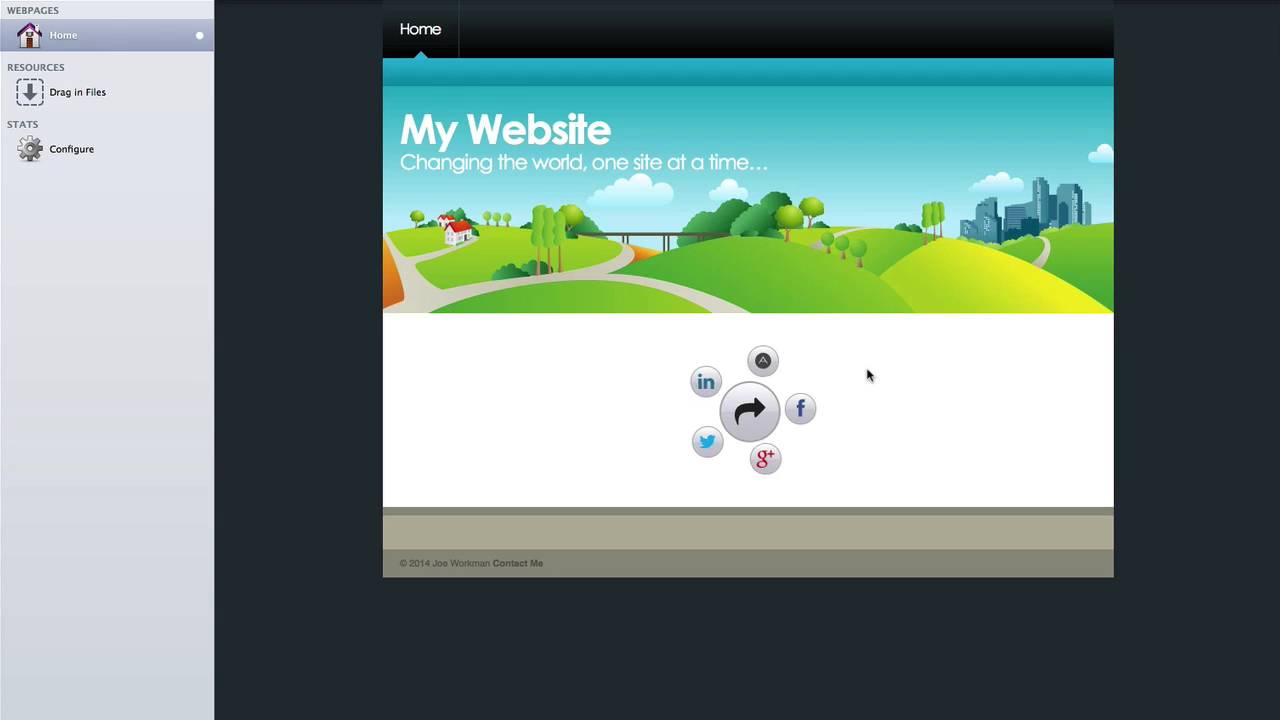
04:40 add an instance of my share it stack to
04:42 the page and let's quickly configure it
04:48 okay so here I have configured my shared
04:50 stack and we have five different social
04:52 services that we could potentially share
04:53 our website over right um so and if we
04:57 preview the page cool I get a nice
04:59 little effect now while sure it's pretty
05:02 easy to configure let's say we wanted to
05:04 have this same exact shared
05:06 configuration on a lot of our web pages
05:09 that we develop or a lot of the
05:11 different websites we write we want to
05:13 save this configuration so that later on
05:14 I don't need to go in and add the stack
05:17 to the page dragging all my social icons
05:20 configure the colors and everything that
05:23 we need for it okay I just want to drag
05:25 it out and be ready to start and go from
05:27 where I like the stack to be so let's go
05:30 ahead and do that so if you'll notice at
05:33 the top right of the stacks toolbar we
05:35 have a new button and it's basically a
05:38 way to save our stack configuration so
05:42 we select the stack that we want and
05:43 let's go ahead and click that button and
05:45 what you'll notice is a new window comes
05:48 up that says create a new user stack so
05:52 let's go ahead and fill out this
05:53 information so here ago I've set
05:56 everything up essentially the first
05:58 field is going to be the title the name
05:59 of your stack that we're saving then
06:02 we're gonna have a subtitle which can
06:03 contain some information for you to let
06:06 you know kind of what the stack is and
06:08 then a full-blown description where you
06:09 can actually type out a longer
06:11 description of what the stack actually
06:13 does and lastly we have a group and this
06:16 is where you can actually define the
06:17 stacks group that is going to be added
06:20 inside the stacks library now what's
06:22 cool is you can actually type in
06:23 whatever you want and that group will be
06:26 created you do not need to use an
06:27 existing group so I'm going to go ahead
06:30 and create a group called my stacks now
06:34 these other two options here clear
06:35 images
06:36 this is useful if maybe you have added
06:39 some images into the stack and you don't
06:41 want then those images to be carried
06:42 over into your user stack and the last
06:47 option here is the lot lock topmost
06:49 stack and this goes over the lock
06:52 feature that we did in part 1 of this of
06:55 this podcast series where basically the
06:57 top stack in that set will be locked so
07:00 that you can't modify any longer this is
07:03 useful in some really edge cases but
07:05 chances are you're not going to check
07:06 this very often so once you're done in
07:09 you're satisfied with all this data go
07:11 ahead and click Save and you get a nice
07:16 confirmation box from stacks saying that
07:17 it saved your stack and now we can look
07:20 at it inside the stacks library so here
07:23 we have inside the stacks elements
07:25 library my share it stack that I saved
07:28 with the user now you'll notice all user
07:31 stacks will have the same icon and it's
07:33 contained within the group that I
07:35 defined inside that window now what's
07:39 important is you do not need to restart
07:41 rapidweaver this stack will be saved
07:43 inside the stacks library and ready for
07:46 you to be used immediately let's go
07:48 ahead and try it out so here I've added
07:51 a new page into rapidweaver and let's go
07:53 ahead and add this stack to the page and
07:56 if we notice this isn't the default
07:58 shared stack this is the stack that I
08:00 saved with all of the settings that I
08:02 had set up all my various shows from
08:05 social networks all my color
08:07 configurations every setting that I
08:09 would like now if I want to add to the
08:11 page and then tweak it later that is all
08:13 up to you but as you see this is a very
08:16 powerful thing we can now save our
08:18 stacks how we like it a lot of times we
08:21 spent a lot of time configuring slide
08:23 shows and banners and trying to remember
08:27 all of those various settings is going
08:29 to be tough and a lot of times what we
08:31 do is we take a copy of a stack from one
08:33 project and paste it into another but
08:35 now we can actually save those
08:37 configurations so that we don't even
08:39 need to remember what project we used it
08:41 in we can just save a copy and use it
08:44 later on now a couple ideas one as we
08:49 see
08:49 here is to basically save setups of
08:51 stacks that you like so create a stack
08:54 on the page tweak the settings to how
08:56 you might like it for a particular set
08:57 up and save it another idea is to
09:01 basically create groups for your
09:04 projects and then maybe inside the
09:06 stacks library you save the group as the
09:09 name of your project just a couple you
09:11 know ideas here now let's take this to
09:15 an extreme and show you kind of how i
09:17 use the user stacks already in my
09:20 everyday life okay so i'll give you one
09:23 guess what we're looking at here what
09:25 we're looking at is one of my product
09:28 pages right or kind of a mock-up of my
09:30 product page right so what i do the
09:35 trick beyond all of my product pages is
09:37 use your stacks if we look at edit mode
09:41 here will see that i have a quite a
09:43 complex page setup here okay and having
09:47 to duplicate this multiple times would
09:49 definitely be a bear it's not something
09:51 that I would look forward to okay but
09:54 with user stacks I can save this entire
09:57 page set up as a user stack and then
10:00 whenever I need to add a new product to
10:02 my site all I need to do is add the new
10:05 my product page user template in there
10:07 and I'm good to go now the trick to
10:11 saving a group of stacks like this is to
10:15 basically throw everything into a
10:16 one-column stack then basically you
10:19 select your one column stack and that is
10:22 the stack that you actually save now
10:25 I've already saved this one and let's
10:27 see it in action so here i have a new
10:30 blank page and essentially i'm going to
10:32 do is I'm going to add my user stack on
10:34 to this page and magically will see my
10:38 entire page setup is here now I'll show
10:41 you a trick that I used to actually help
10:45 myself to figure out what I need to
10:47 tweak after I added this stack to the
10:50 page and this secret to this is my
10:52 locker stack this is a free stack that
10:55 allows you to add notes to edit mode so
10:58 inside this area I've added a locker
11:01 stack to each location
11:03 I needed to modify so inside this expose
11:07 stack I added a note here that says I
11:09 need to be it make sure that I change
11:10 the video ID so then I go into the vimeo
11:13 stack then i go into the settings and
11:15 change the ID for the video that is for
11:17 that particular product scroll down the
11:20 page I have another Locker stack to
11:22 remind me that I need to add a 512 pixel
11:24 image and I need to add the product
11:27 description and so on and so forth you
11:29 get the idea essentially the locker
11:31 stack allows me to add notes in edit
11:34 mode and they will not be previewed once
11:37 i publish the site live now I promise me
11:41 we're going to review too much from the
11:42 part 1 of the stacks 205 series but ok
11:46 here's just a great use that I used to
11:48 show and hide stacks on my page so in
11:51 this example I have an exposé stack and
11:54 normally it would be on the page and it
11:56 would look like this but I don't need to
11:59 edit it at all so before I saved it as a
12:02 user stack I hid it because I don't need
12:05 to modify that stack at all I don't need
12:08 to modify anything on that stack it's
12:09 going to be the same for every single
12:11 product page so i just hit it now if i
12:14 ever need to unhide it as you know i can
12:16 easily unhide it with just a click of a
12:18 button in the stacks toolbar but it just
12:21 makes the page a little bit cleaner to
12:23 basically have only things that you need
12:25 to edit visible ok so use your stacks
12:28 are really cool right and all right did
12:30 I was i right ok I was right so these
12:35 things are really easy to configure as
12:36 you saw it just with a couple mouse
12:39 clicks we saved an entire stack set up
12:42 now because this is so easy to do and
12:45 it's so powerful I say this is pretty
12:47 revolutionary for the rapid every
12:49 community we can save you know tons of
12:52 layouts anything that you want it's
12:55 nothing as me as developer I save it for
12:57 you and say this is how you should use
12:59 it you define how you want the stacks
13:01 set up you save them how you want them
13:04 to be saved right so that you can easily
13:06 use them in the future this is a huge
13:09 time saver for everybody so to wrap up I
13:12 hope you enjoyed this I hope you enjoyed
13:14 the two-part series I hope
13:16 love stacks 25 as much as I do because
13:19 it's really really great setup as always
13:23 if you have any questions comments or
13:25 concerns I am on the various Internet's
13:27 at Joe workman on Twitter and app.net if
13:30 you want to email us email us at support
13:33 at Joe workman net and as always check
13:35 out our great products which make these
13:37 freak podcasts available at Joe or net /
13:40 rap Weaver also we have some great Mac
13:42 apps at joe working out net / mac so
13:45 make sure you check out some of our
13:46 great Mac apps as well I hope you have a
13:49 great day everybody take care thank you
13:51 bye


