
Stacks Guru is born from the need to search the vast number of videos out there on stacks built for Stacks Pro and the Stacks 5 plugin for Rapidweaver.
We have scraped over 500 videos to get the transcripts for each in order to make the spoken word searchable.
Please use this free tool to help you learn and discover the awesome power that Stacks and the stacks made for Stacks have to offer.
00:08 well hello everyone welcome Weaver cast
00:10 Weaver cast is a regular podcast where
00:13 we review tips and best practices for
00:15 rapidweaver and web design I am Joe
00:18 workman your host I'm an indie mac and
00:21 web developer based in the San Francisco
00:23 Bay Area this is show number 25 today is
00:27 Tuesday april first 2014 and Weaver cast
00:32 is never longer than 15 minutes so let's
00:35 get started so today we are going to be
00:39 going over the keyboard and basically
00:43 how we can use the keyboard to
00:46 effectively use rapidweaver better right
00:48 so we can kind of help speed things up
00:51 by memorizing a couple old keyboard
00:53 shortcuts now I do have to admit I'm
00:58 about to say the M word because this
01:01 isn't my keyboard that I use every day
01:04 but it looks cool I like this keyboard
01:06 but my wrists don't like it very much
01:09 this this is my keyboard it's from
01:12 Microsoft um and it's the ergo keyboard
01:16 but it's cool but the keyboard commands
01:18 work the same right so we're going to be
01:20 going over keyboard shortcuts and some
01:23 cool ones that you can use to use your
01:26 upper Weaver faster so without further
01:27 ado let's get started so really quick
01:32 what is the thing that we do the
01:34 absolute most inside rapidweaver I bet
01:37 it's exactly the same for you as it is
01:39 for me it is switching between preview
01:43 and edit mode so that you can preview
01:45 your website right well you know a lot
01:49 of times you can go ahead and click this
01:51 little you know switch on the bottom
01:53 here okay and that's fine but you have
01:56 to move your mouse down there and what
01:57 not but what if we knew a keyboard
02:00 shortcut and it is simply command R and
02:05 it is a beautiful command quickly go
02:08 from edit mode to preview mode and back
02:11 to edit mode so to go back to edit mode
02:13 you sit command are again and bam you're
02:15 back to edit mode this is by far the
02:18 most used keyboard shortcut that I use
02:21 throughout my day I'm constantly
02:23 switching back and forth between edit
02:25 mode and preview mode at a little
02:27 preview mode edit mode preview mode
02:28 right this command are I bet you my arky
02:31 is going to wear out really quick so
02:34 that is tip number one now there are
02:36 tons of other keyboard shortcuts another
02:39 one that I use a lot is showing the page
02:41 inspector so that is command shift I and
02:45 this is a great way just to open up the
02:48 page inspector really quick now if you
02:50 wanted to get to the page plugins it is
02:53 alt command I right so what are some
02:56 other things that we can do you know
02:58 command K brings up your publishing
03:01 settings command shift k will actually
03:05 publish your site assuming you have it
03:07 configured to be published you can a
03:09 command shift e will export your site
03:12 right command one brings up your site
03:15 setup there's all kinds of other great
03:18 ones command shift em marks all pages
03:20 has changed okay now where do you learn
03:25 all these things like I'm just
03:27 regurgitating these commands because
03:29 I've used them enough where my fingers
03:31 have muscle memory for them but how do
03:34 you know how are they are well luckily
03:37 there is a built into OS 10 so every
03:41 single application that you use this is
03:44 not just for rapidweaver if we look at
03:47 the menus you will notice next to the
03:49 menu command for every single thing that
03:51 we want to do is a keyboard shortcut so
03:55 if I want to duplicate a page in this
03:57 instance it would be command D earlier I
04:00 said exporting the site with shift
04:03 command II right publishing settings
04:06 command K okay making all pages marked
04:11 as changed shift command m ok a lot of
04:15 these things are just a now ingrained in
04:17 my brain but if you ever forget what
04:19 they are just simply go to these menus
04:22 look at the command that you want to
04:24 learn
04:25 and then remember the keyboard shortcut
04:28 now another one that I use a lot is
04:30 clear formatting this is alt command
04:33 period very useful if you are pasting in
04:37 some text from somewhere and you want to
04:39 quickly clear the formatting just do
04:41 command a to select everything and then
04:44 alt command period right and that clears
04:47 the formatting for you it could not be
04:49 easier um that's another key one that I
04:52 think you really should remember um site
04:56 setup we saw some other things I manage
04:59 bookmarks if you like bookmarks and we
05:01 saw command R which is switching between
05:04 edit mode and preview mode right very
05:06 useful thing now one thing you might not
05:09 know is if you hover over any sort of
05:13 menu inside any app throughout Mac um
05:17 hover over the menu and click the alt
05:19 key now watch the menu will notice that
05:23 we now have additional menu items that
05:26 we did not see before now export changes
05:32 to default folder is something that I
05:34 actually do all the time it's probably
05:36 next to command R for me because I don't
05:39 actually publish my web pages I export
05:42 them locally and then I use something
05:44 called get to transfer them to my web
05:47 server so exporting changes locally is
05:52 another also another great way if you're
05:53 like previewing your website locally for
05:55 mamp or using code kit or live reload
05:58 something like that right so um
06:01 exporting changes is really really
06:04 critical um it's a quick way of
06:05 basically it's like the publish button
06:07 but locally so it's only going to
06:10 publish the changes locally to your
06:12 machine to a folder that you've defined
06:14 once you've actually done a full site
06:17 export now the only problem is this
06:21 keyboard shortcut is really confusing um
06:23 I don't know my fingers can't hit alt
06:26 command shift Iver II easily um it works
06:30 but you got to use the pinkie and your
06:32 thumbs got to use to you know fingers
06:34 got to be on three buttons and then you
06:36 hit the e okay so
06:38 what I normally do and I will i undid it
06:43 just for this podcast so I can redo it
06:45 for you is I change the mapping to
06:49 export changes to default folder to a
06:51 nucca meet to a new keyboard command and
06:54 I like just using command II because
06:56 it's really simple for me so let's go
06:59 ahead and change that right now so
07:02 you're going to start off and going
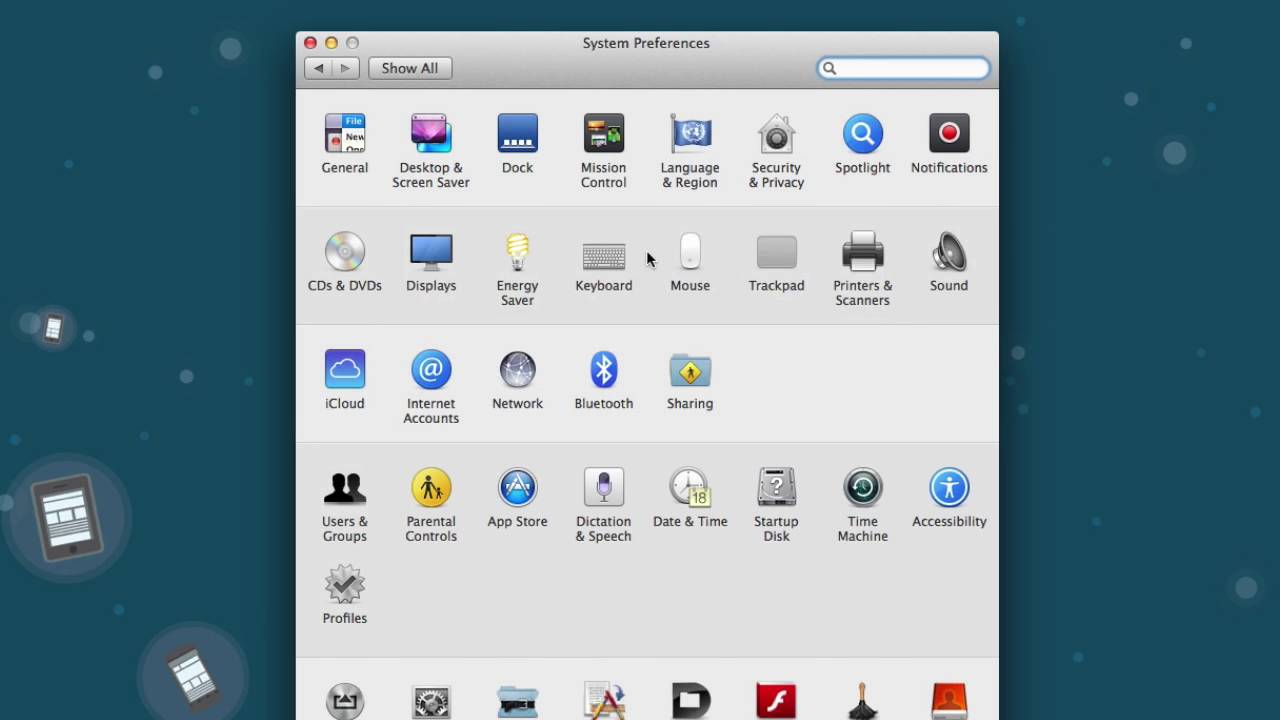
07:02 going into your keyboard system
07:04 preferences and going to short the
07:07 shortcuts tab then you're going to go
07:09 into app shortcuts okay and you'll see I
07:12 have a couple shortcuts defined for
07:14 other apps here we're going to click the
07:16 plus button and we want this to run on a
07:20 specific application in this instance we
07:22 want rapidweaver okay now we're going to
07:26 have to know the menu title so we wanted
07:28 export changes to default folder and
07:31 then for the shortcut I want to change
07:33 that to command e so I hold down the
07:36 command button and the e button and I'm
07:39 going to go ahead and click Add now
07:42 that's all I do for rapidweaver I'm
07:44 happy with all the rest of the defaults
07:45 but this one I like to change it up a
07:48 bit so if we go into the rapper / file
07:50 menu will now see that export changes to
07:53 default folder has been changed to
07:55 command e so if I go ahead and click
07:59 command Ephraim now on it's going to say
08:02 site export do I want to save changes I
08:05 would say yes and it's going to go ahead
08:07 and export every changed file to the
08:10 local folder that I specified when I did
08:12 the original site export now we all love
08:16 stacks right now luckily stacks has its
08:19 own set of keyboard shortcuts that we
08:21 can use now sometimes if you ever use
08:25 rapid weaver on a laptop sometimes
08:27 screen real estate can kind of be a
08:29 desire right and so what we can easily
08:33 do is hide the settings pane and you
08:37 simply do that by clicking the I button
08:39 is just I it's not command I all of
08:44 these stacks keyboard shortcuts is just
08:46 a letter or number there is no command a
08:49 button associated with it
08:52 so you can't run these commands when
08:53 you're in like text editing mode per se
08:55 but if you just have a stack highlighted
08:57 on the page and you hit the I key you'll
09:00 notice that the settings pane will
09:02 toggle on and off very convenient
09:07 another thing that we can do is we can
09:09 switch between these stacks view modes
09:12 so normally I like to edit my mop my
09:16 stacks inventing mode okay but there's
09:20 also a tall mode grande mode and of
09:24 course the venti mode for editing stacks
09:28 you'll notice that if we go back down to
09:31 tall mode we really get a nice potential
09:33 preview of what our site will look like
09:36 now we're looking at my new theme called
09:39 foundation that's coming out really soon
09:41 and I worked really hard so that you can
09:44 actually get as close as possible to
09:47 previewing your website inside stacks
09:50 edit mode without actually having to
09:52 switch back into rapid weavers preview
09:56 mode so it's just a little bit faster
09:58 while you're editing you can just simply
10:00 go hit the one button and bam and if you
10:03 want to continue editing you can
10:04 continue to edit in this mode you can
10:06 edit your text you can change site
10:08 setting our stack settings and things of
10:10 that nature and if you want it go back
10:13 you just go ahead and click on number
10:15 three go back to venting mode and
10:17 continue on as you would be for now
10:21 there are a bunch of other options for
10:23 stacks and they're all listed inside the
10:27 settings pane for stacks so if you open
10:30 up the page inspector and go to the page
10:32 settings and go to shortcuts tab you'll
10:34 notice here are all of the keyboard
10:37 shortcuts that you can use you can
10:40 toggle the stack elements library the
10:43 templates library and the media
10:45 libraries just by hitting etm we saw the
10:48 various View mode switches and then you
10:51 can also navigate around stacks with the
10:55 arrow keys so if you have a stack
10:57 selective and you want to go down you
10:59 can use the arrow keys and whatnot we
11:02 saw that you can also toggle the info
11:03 pane
11:04 there's also ways to in developer mode
11:07 to see additional debug information as
11:10 well as reload your stacks library most
11:13 time is only useful for developers so
11:16 just to review the keyboard shortcuts
11:18 that I use the most inside rapidweaver
11:20 we have command R to switch between
11:23 preview and edit mode we have command E
11:27 which we remapped inside the OS 10
11:29 system preferences to export our site
11:32 changes you can also publish your site
11:35 with shift command K okay and lastly we
11:39 can change the view modes inside stacks
11:41 between venti tall and grande modes and
11:45 also toggle our stack settings pane
11:48 easily with the i key well thanks for
11:52 joining today everyone I hope you learn
11:54 a couple of tidbits and you know how to
11:56 use these keyboard shortcuts to make you
11:58 a little bit more productive as always
12:00 if you have any questions comments or
12:02 concerns hit me up on the various
12:03 internets I'm at Joe workman that's app
12:06 net and Twitter you can shoot us an
12:09 email at support at Joe workman net let
12:11 us know what you think if you love the
12:13 podcast go ahead and submit some reviews
12:16 in itunes I'd appreciate that get some
12:19 review love and iTunes is always
12:21 appreciated and as always these podcasts
12:24 are brought to you by my products so go
12:28 ahead and check out some of my awesome
12:29 mac and rapidweaver add-ons at joe
12:32 workman net and thank you very much
12:35 everybody I hope you have a wonderful
12:36 day thank you very much
12:42 you


